
Introducing the Overlay of Time-GPS vs EWD feature in Kynection, designed to assists customers in detecting discrepancies between recorded work/rest logs and the corresponding GPS data to ensure data accuracy and compliance.
CoR
Navigate to CoR Module
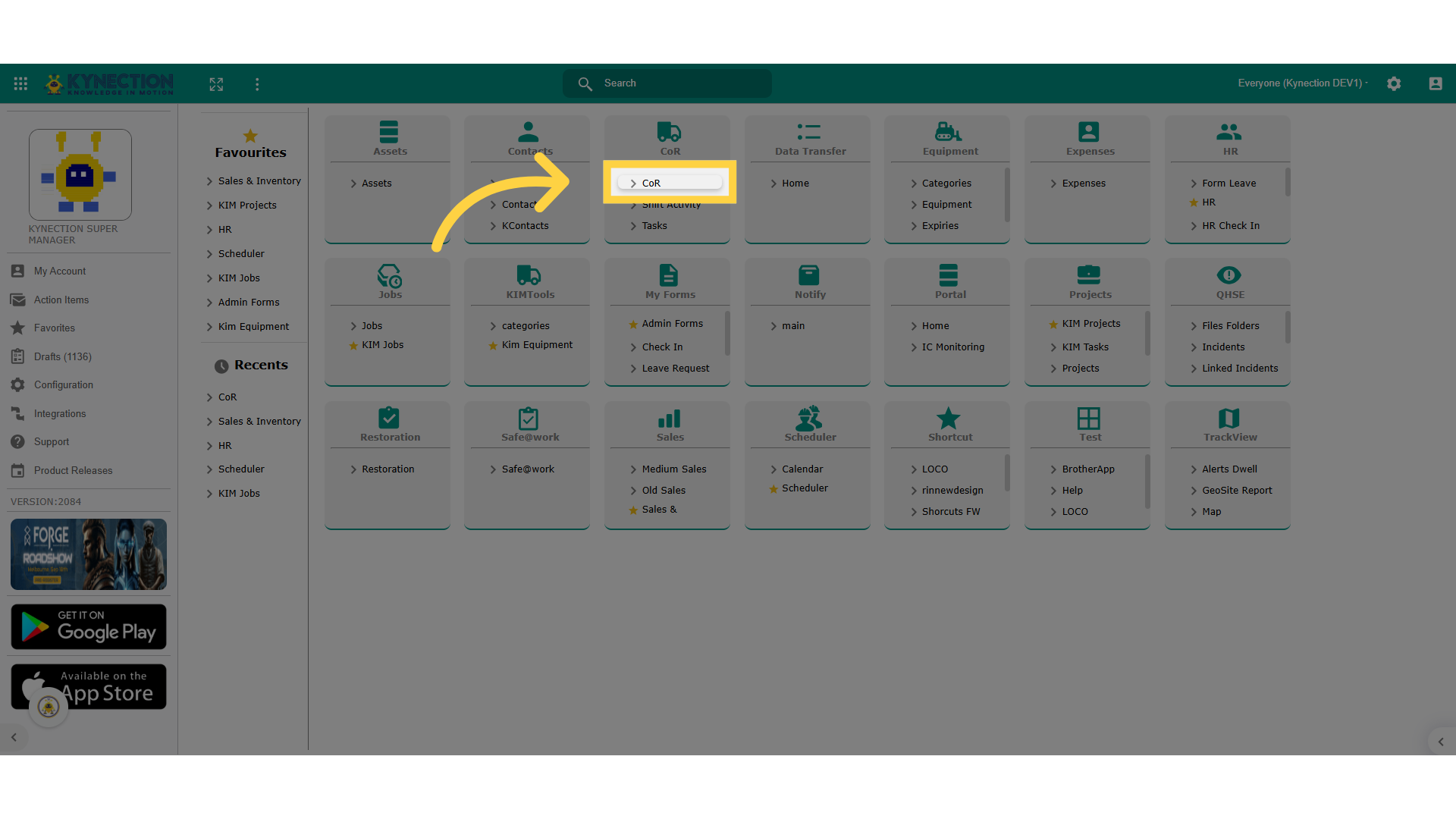
Settings
Navigating to Settings from left pane
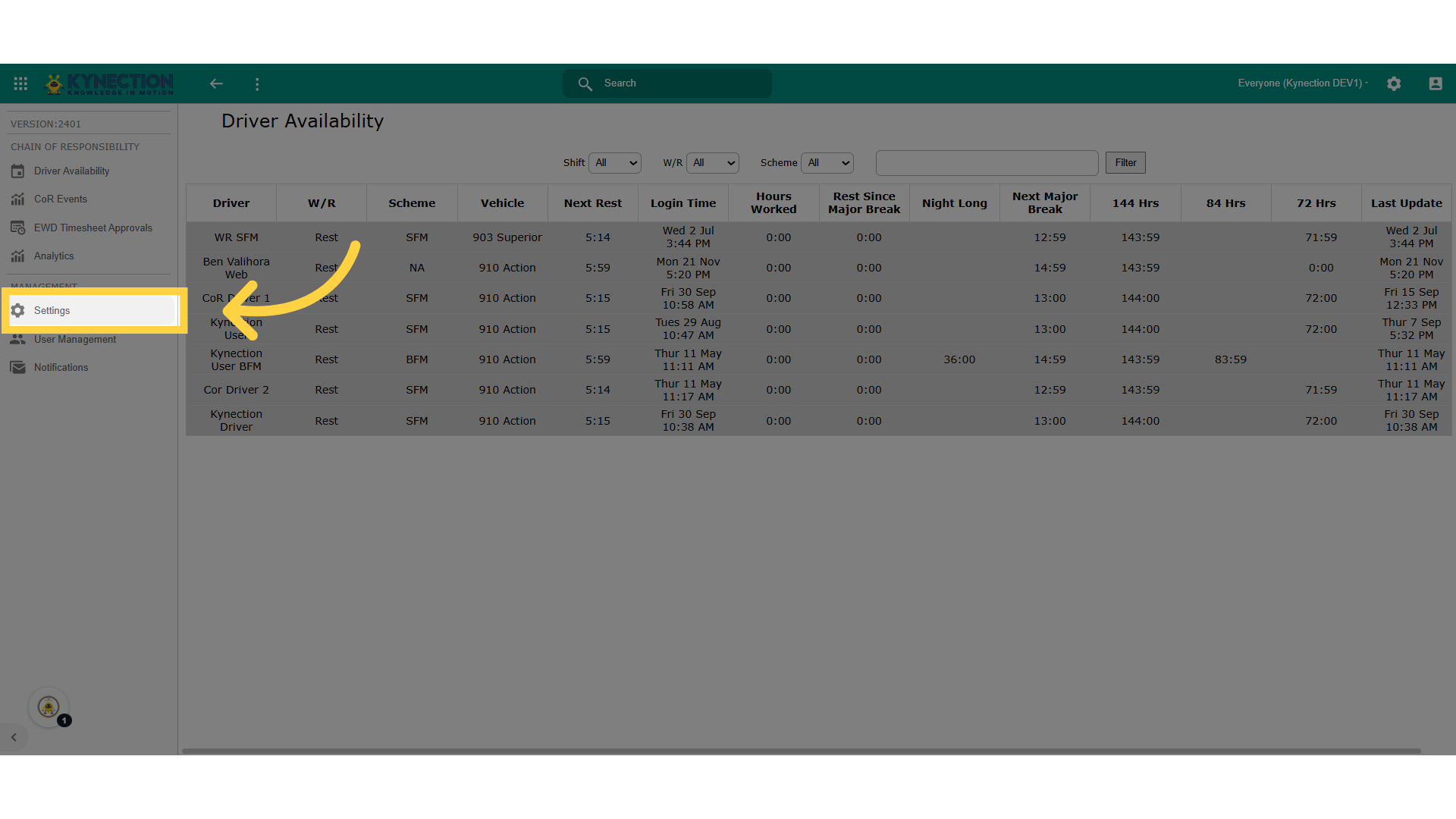
Settings Tab
Click on Settings Tab
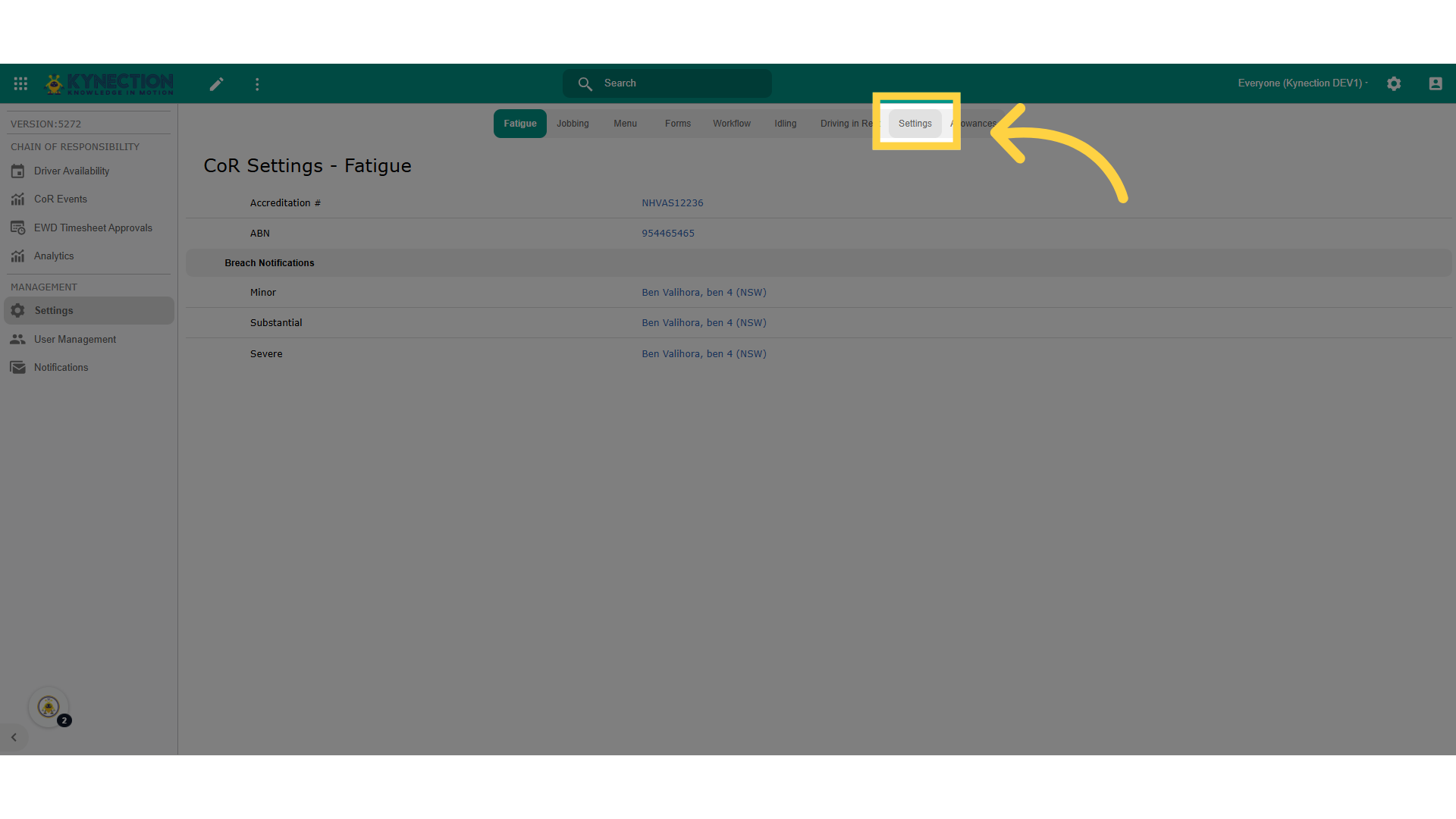
Edit
Now click on edit pencil
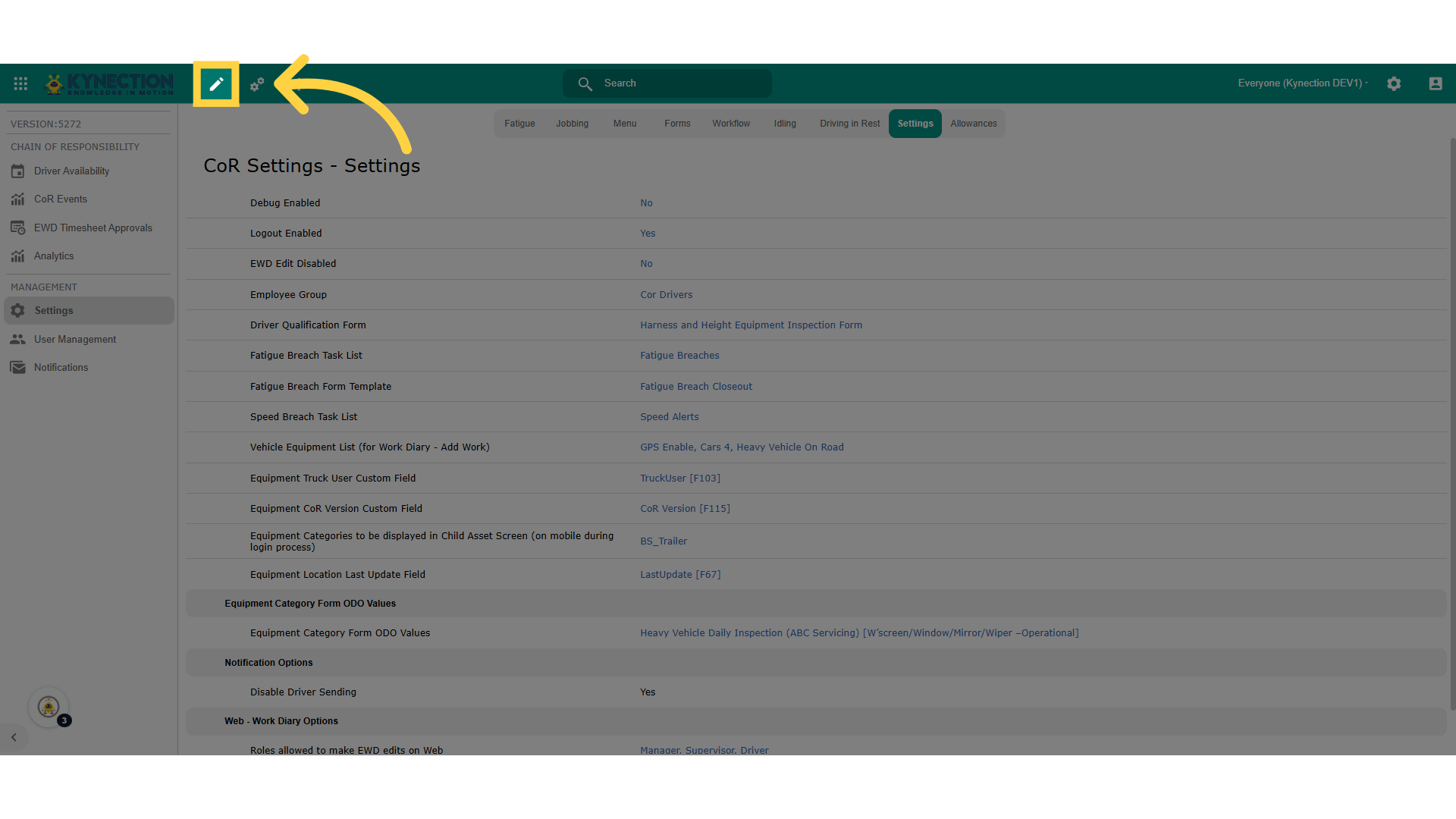
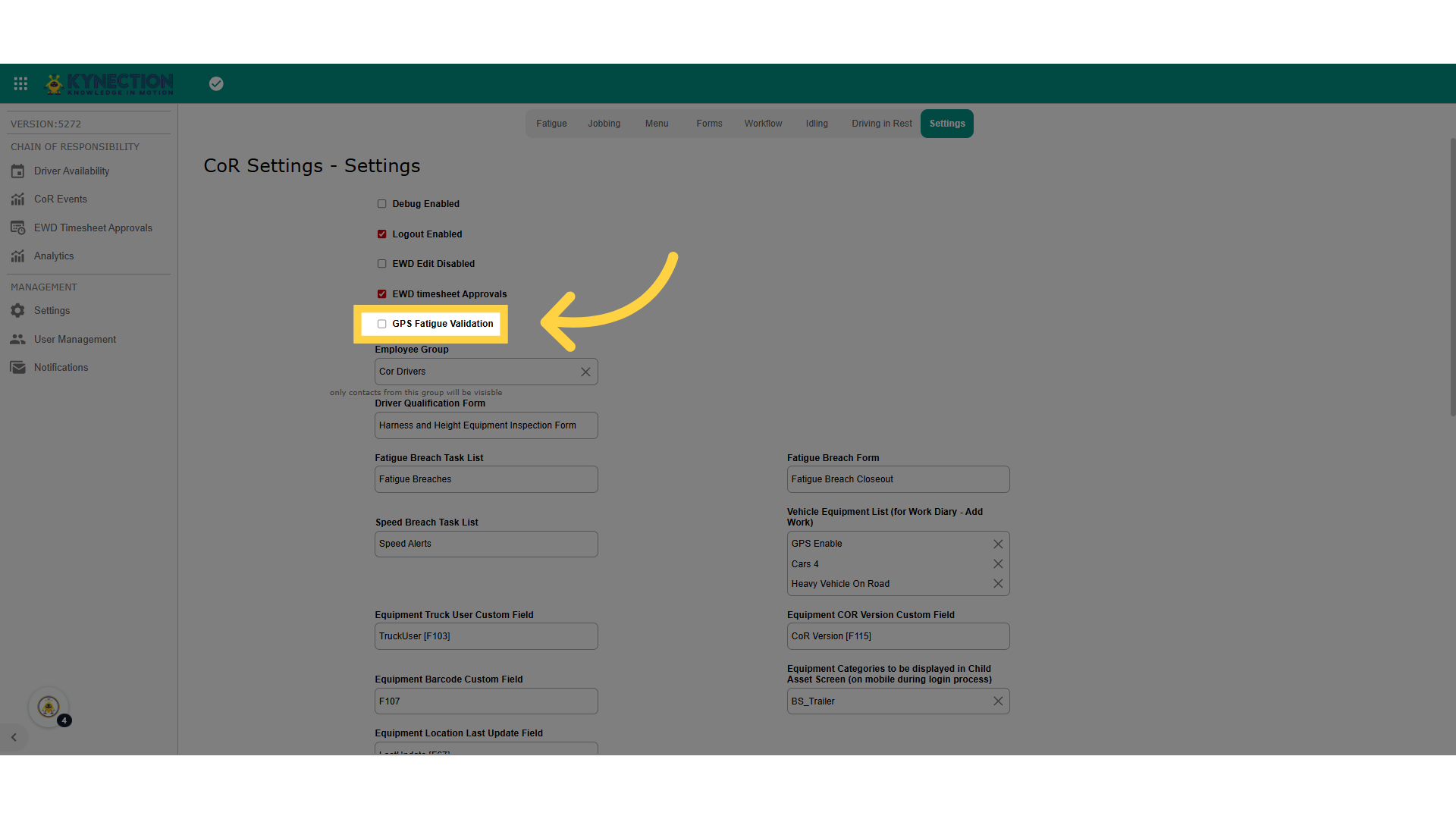
Enable
By Checking on GPS Fatigue Validations, we can enable the feature
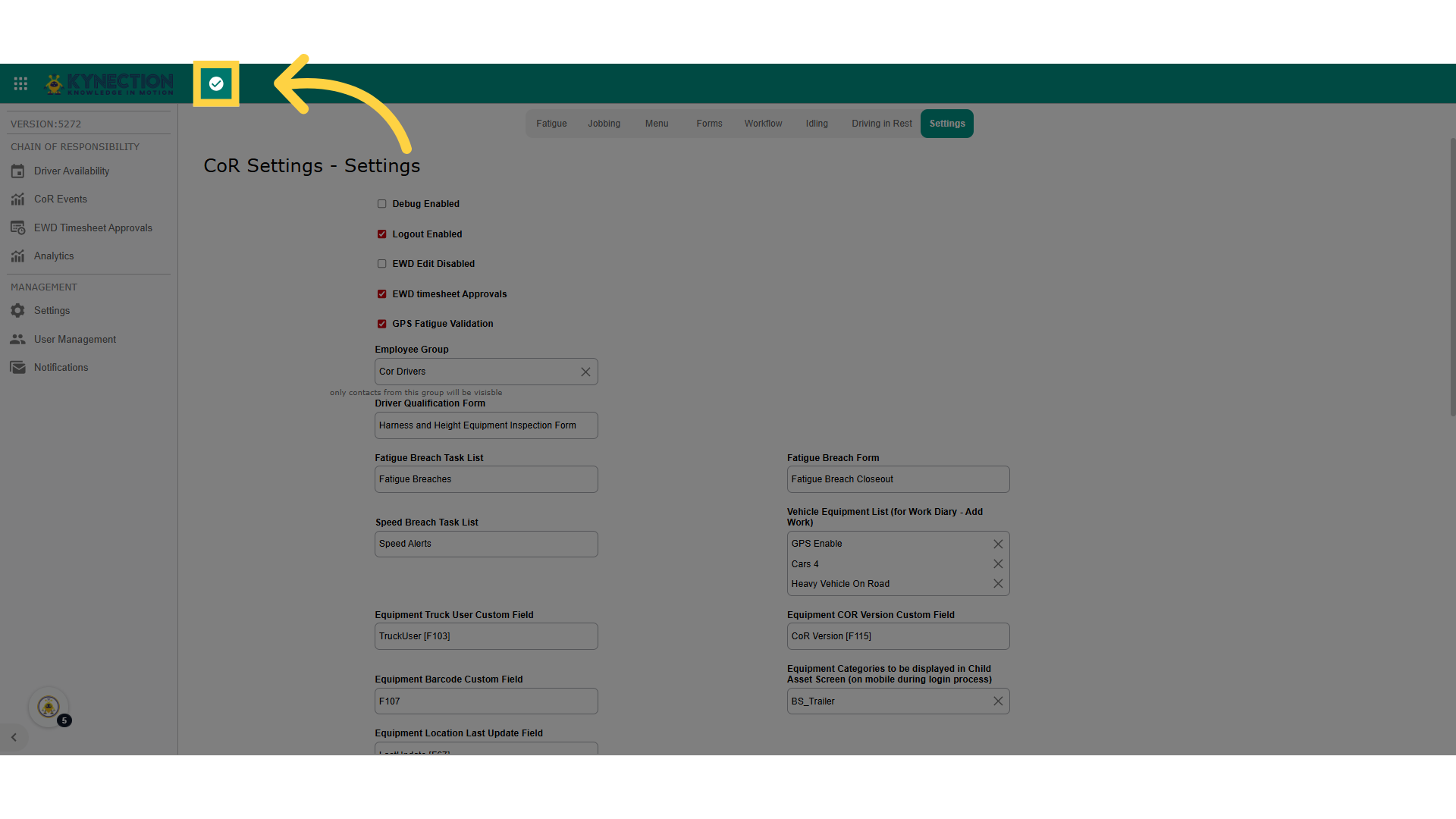
Submit
After enabling the feature, click on the tick mark to submit your change
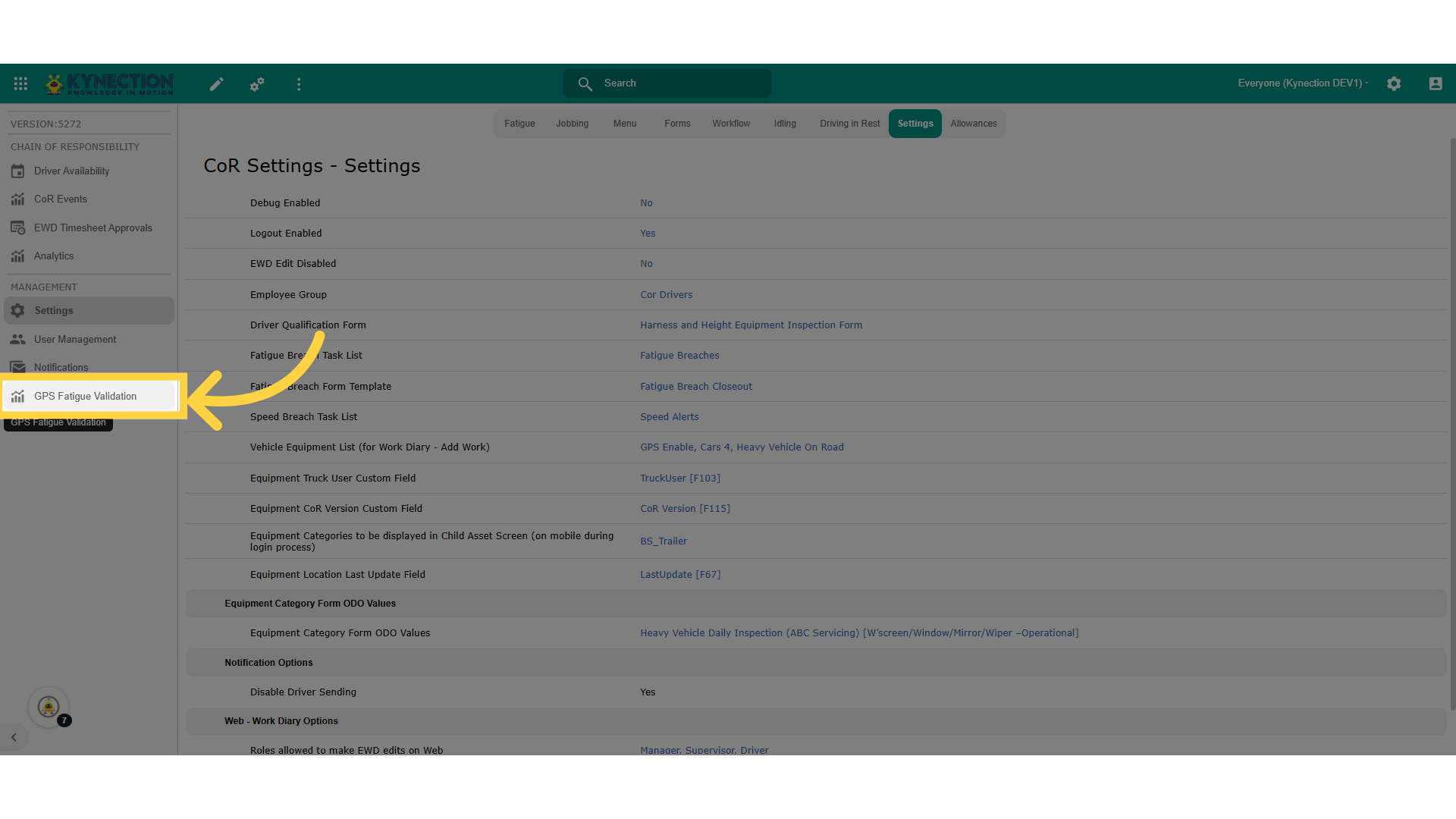
Left pane - GPS Fatigue Validation
Now, you will be able to view the GPS Fatigue Validation left pane. Please select that option
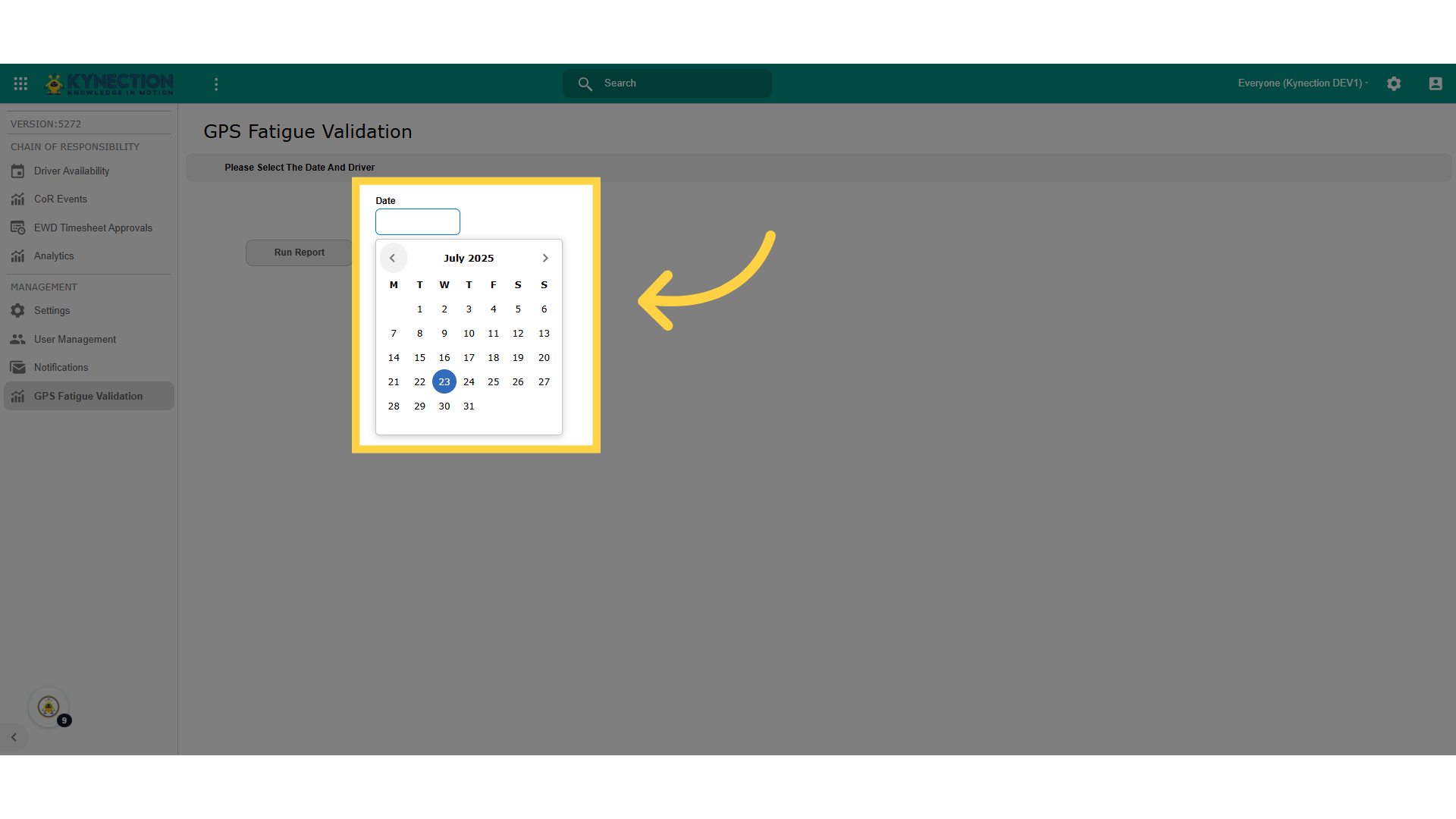
Date
Kindly choose the date you’d like to review the data for.
Drivers List
This field displays the drivers who logged in for work on the selected day.
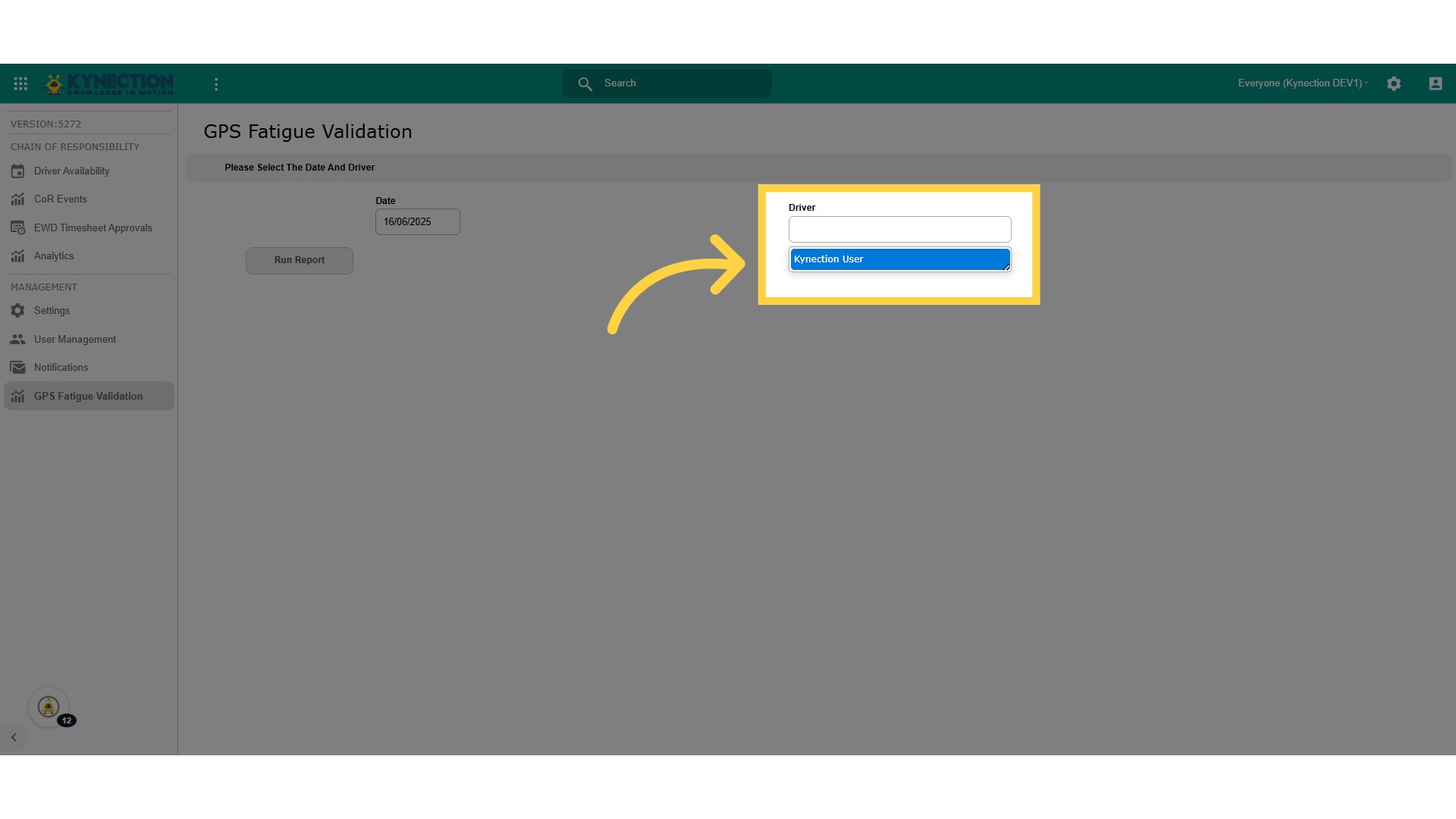
Run Report
Please select the appropriate driver and then click on 'Run Report' to generate the data.
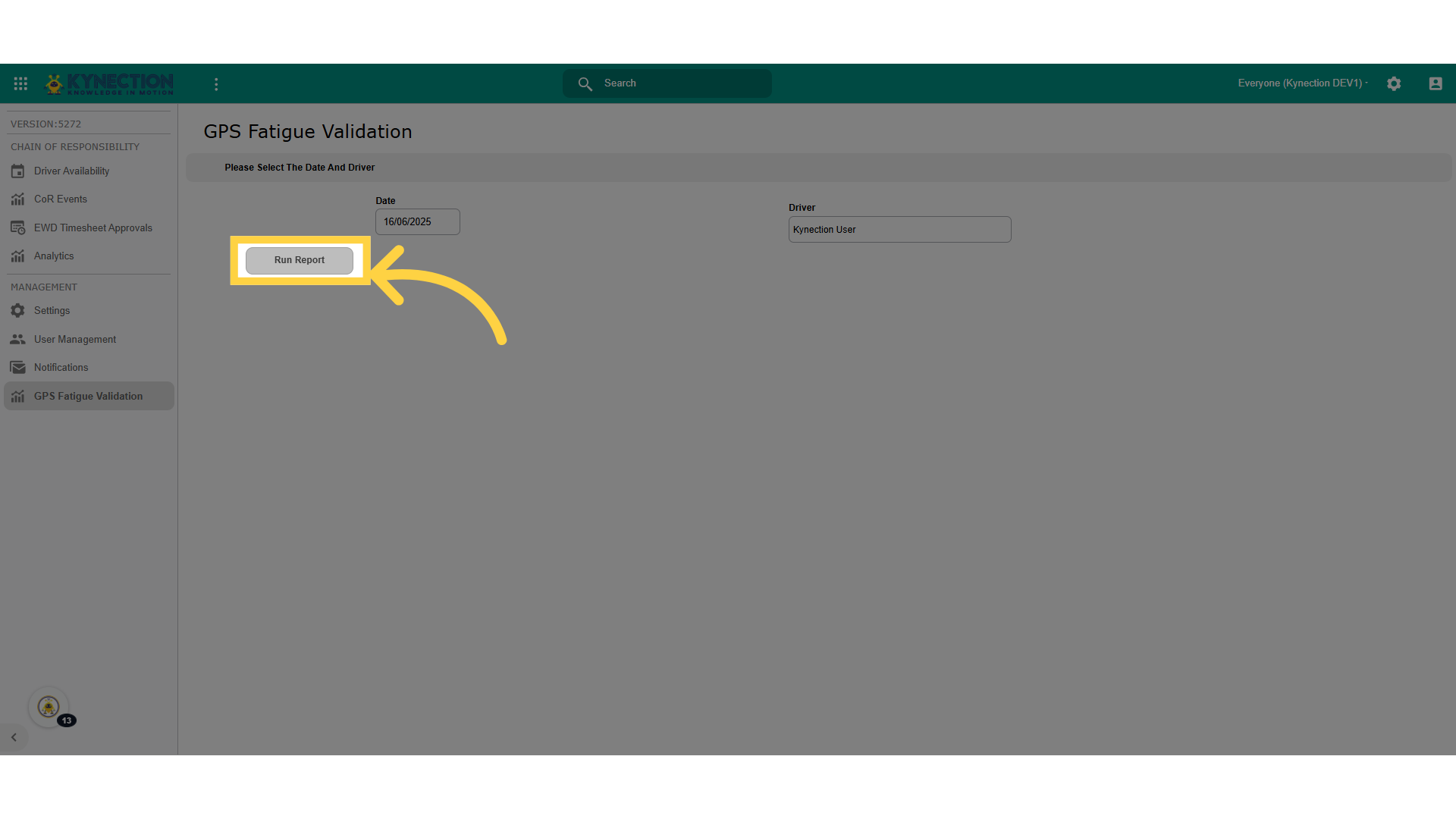
Generated Report
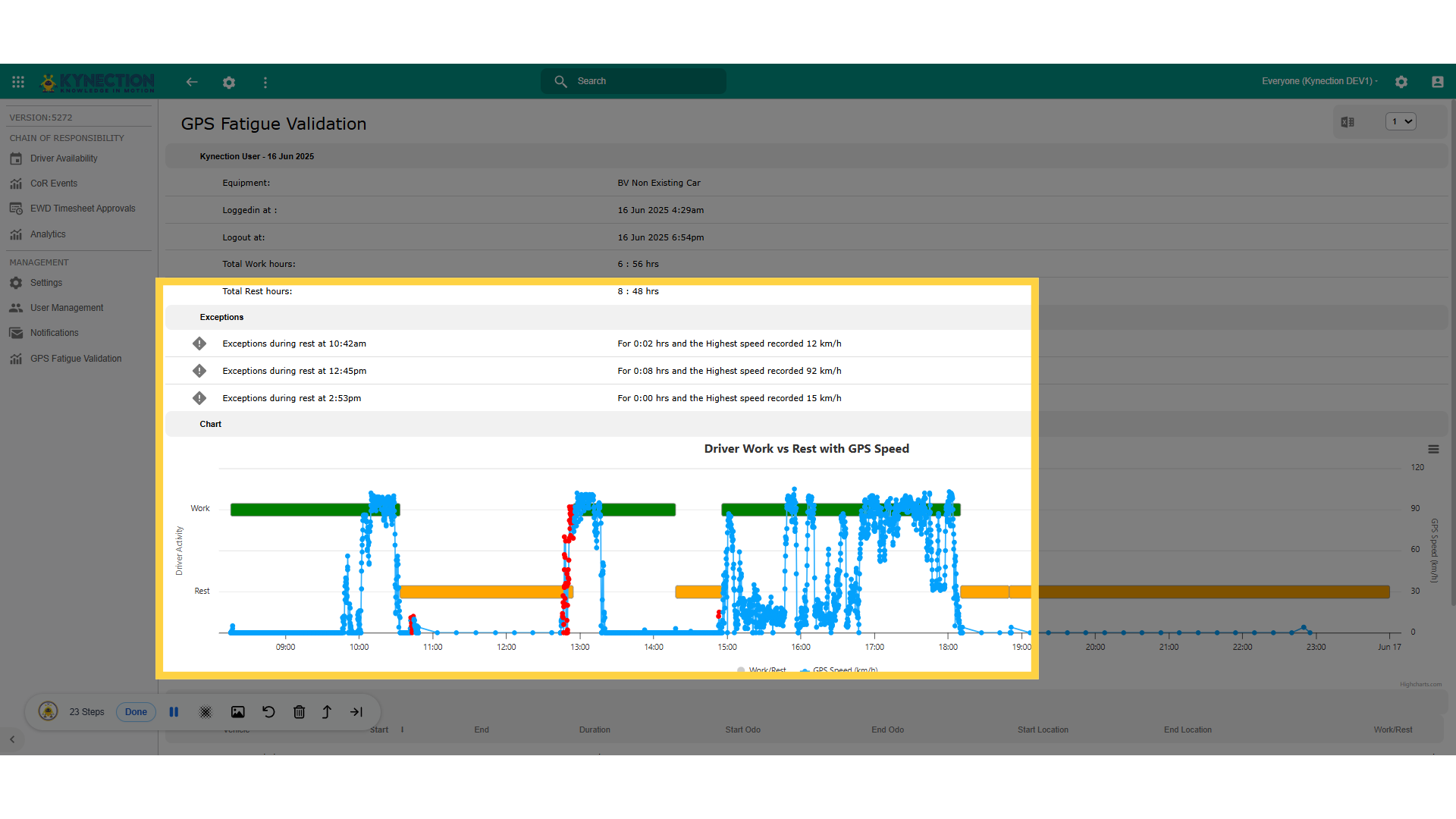
You will be able to view a chart that displays the Work and Rest data logged through the COR module, compared with actual GPS tracking data, along with Time and Speed information. The graph highlights the exceptions with rest period in red colour.
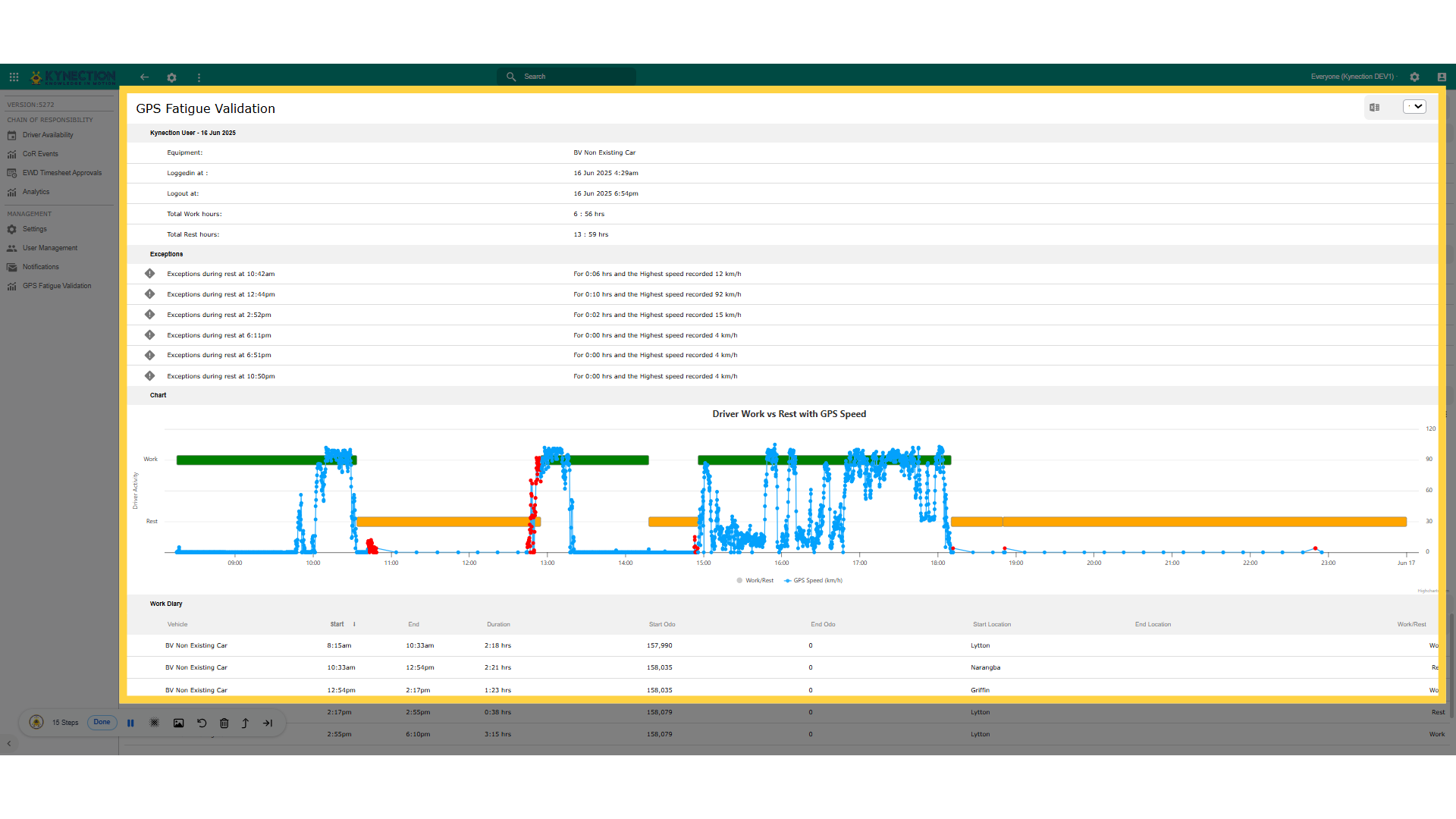
cog Wheel
click on the cog wheel to manage the threshold speed for adjusting the exceptions during Rest period
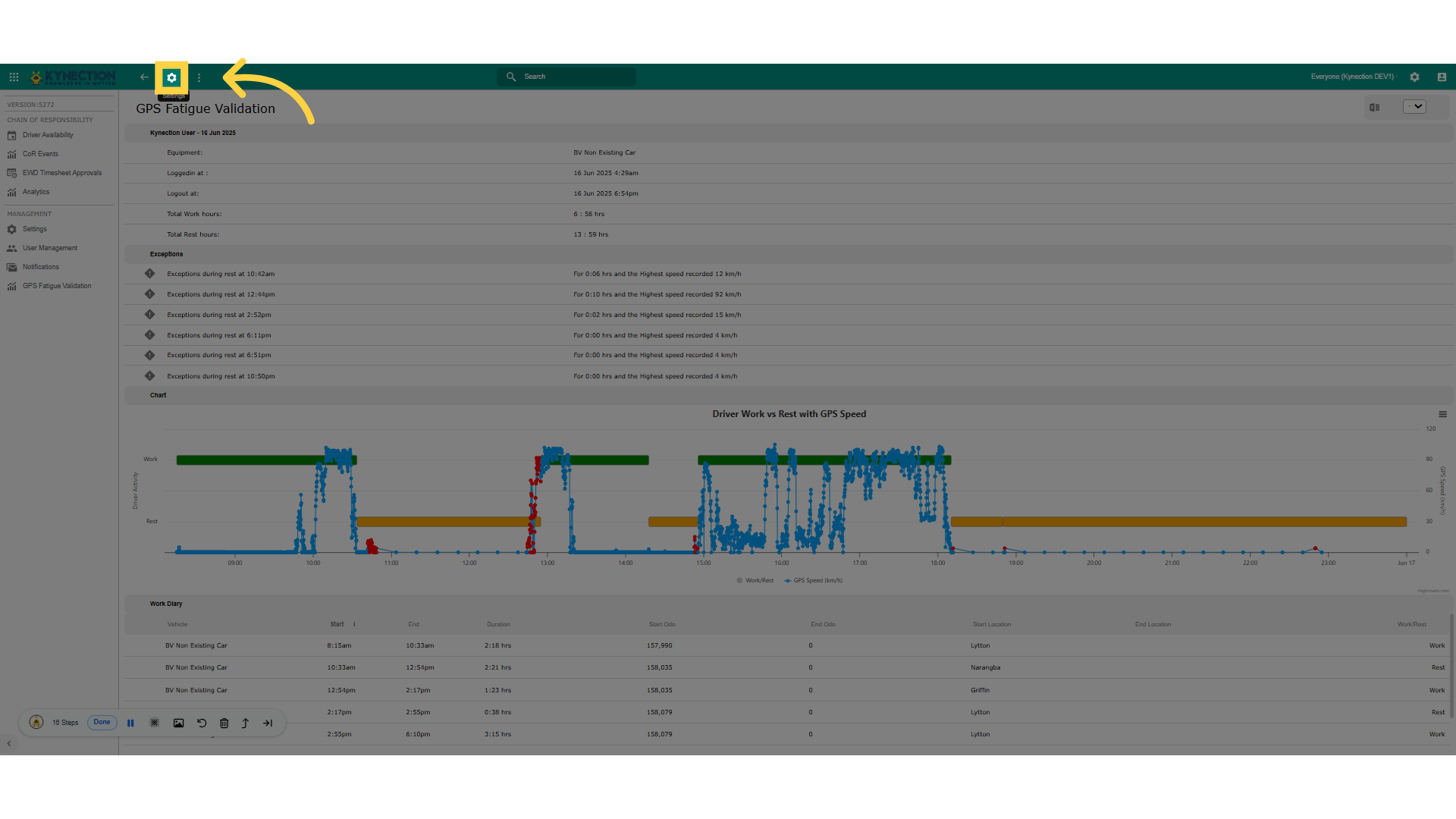
Speed Threshold Pane
Clicking the cogwheel opens a pane displaying the threshold speed. By adjusting this value, you can control how exceptions are identified.
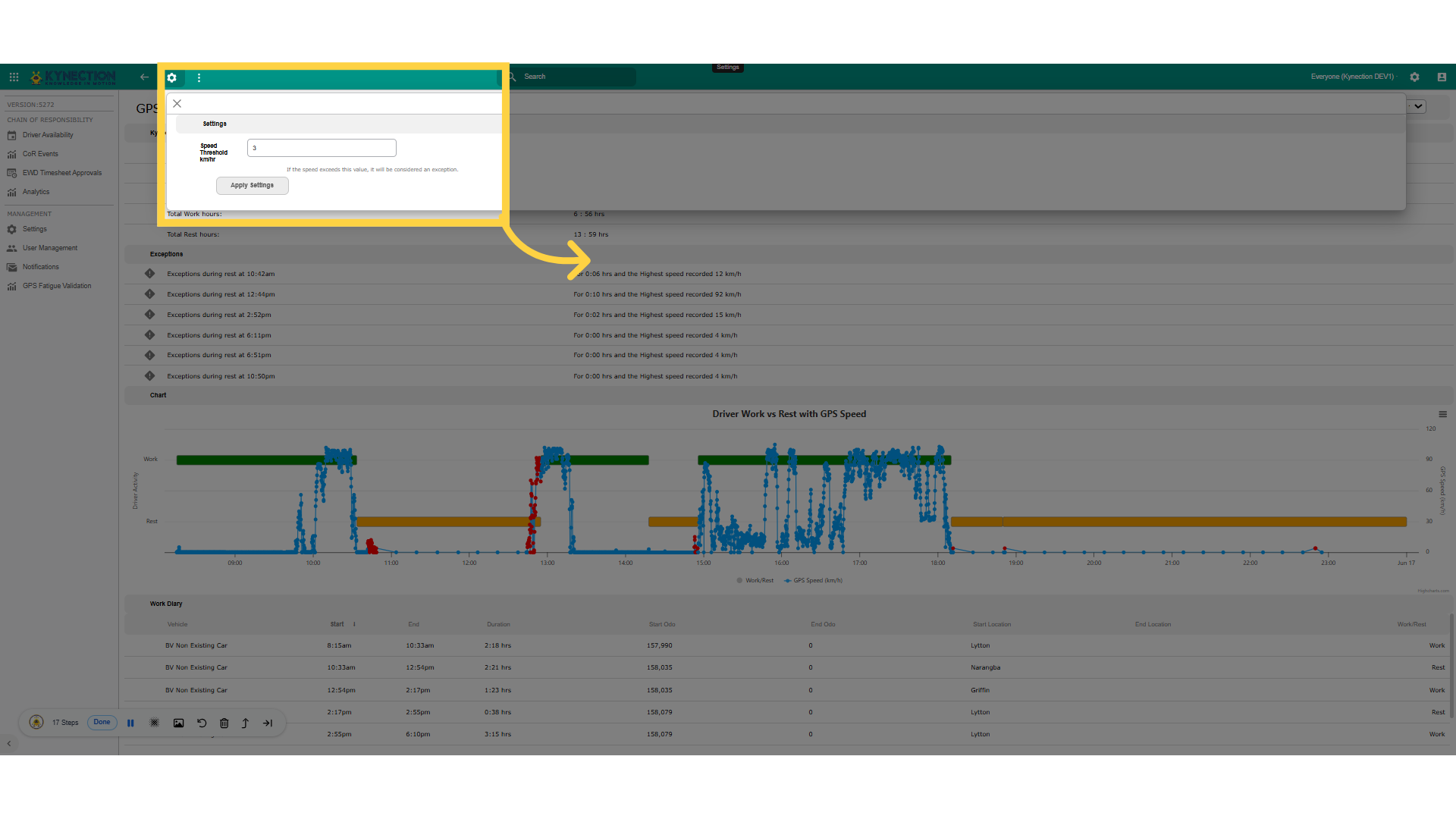
Apply Settings
Alter the value as per your choice and hit on Apply Settings button

Exception List
After adjusting the threshold speed, you will notice corresponding updates in both the Exception List and the Graph display
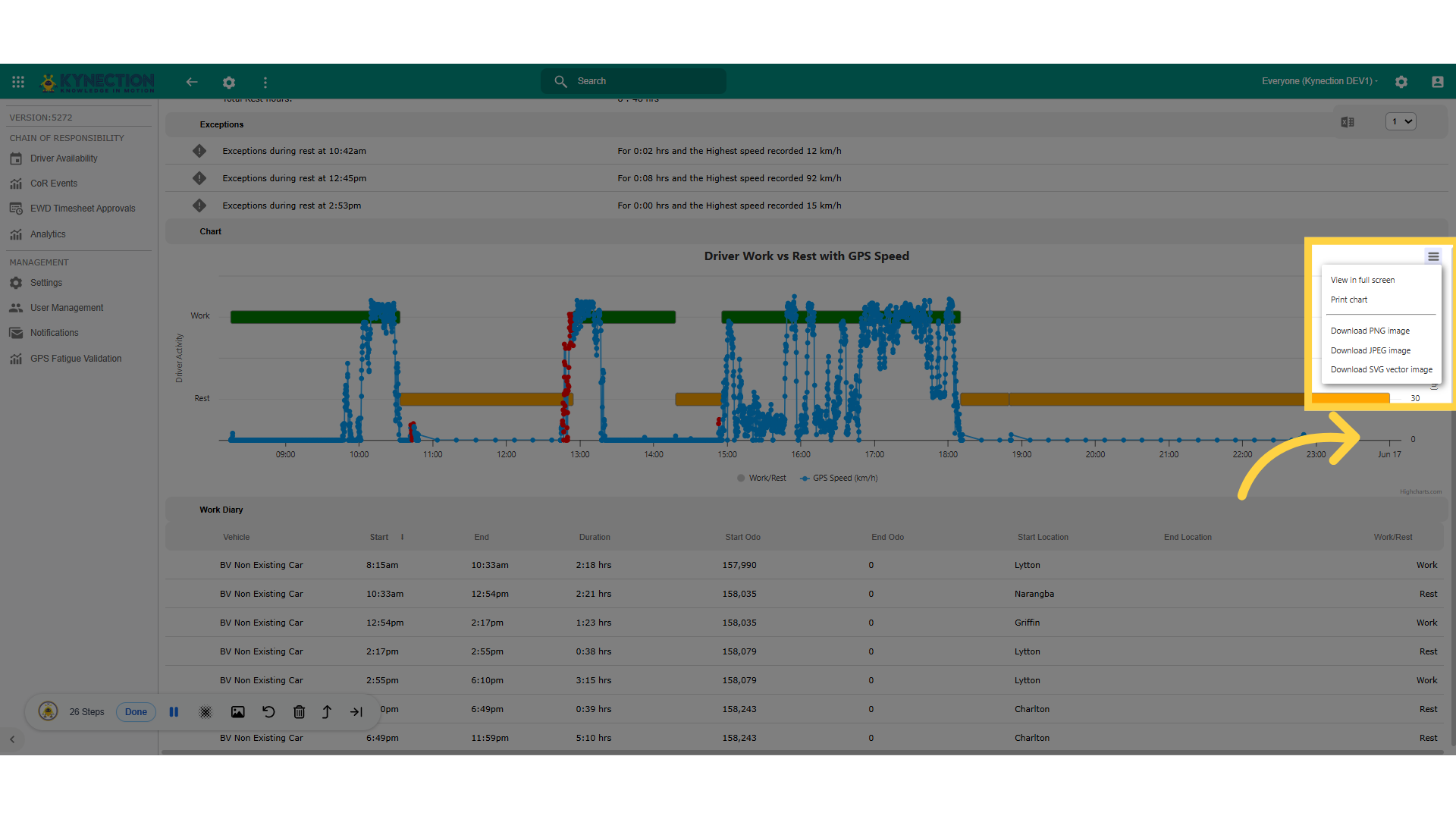
Graph Features
Graph Features
By implementing the Overlay of Time-GPS vs EWD feature, users will gain access to precise fatigue validation reports, enhancing their ability to manage resources effectively.