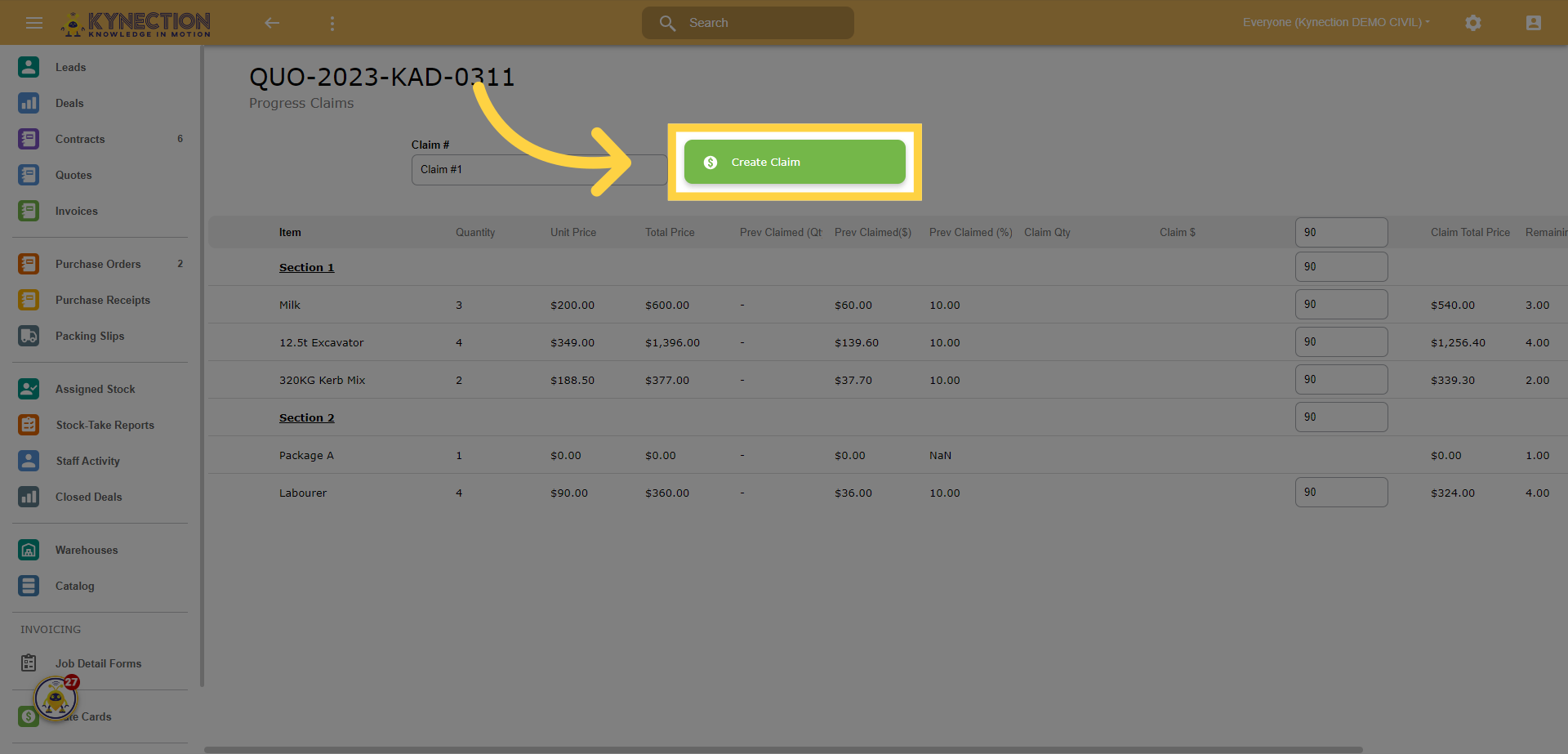
2. Open the quote
Click on the "QUO-2023-KAD-0311" button.
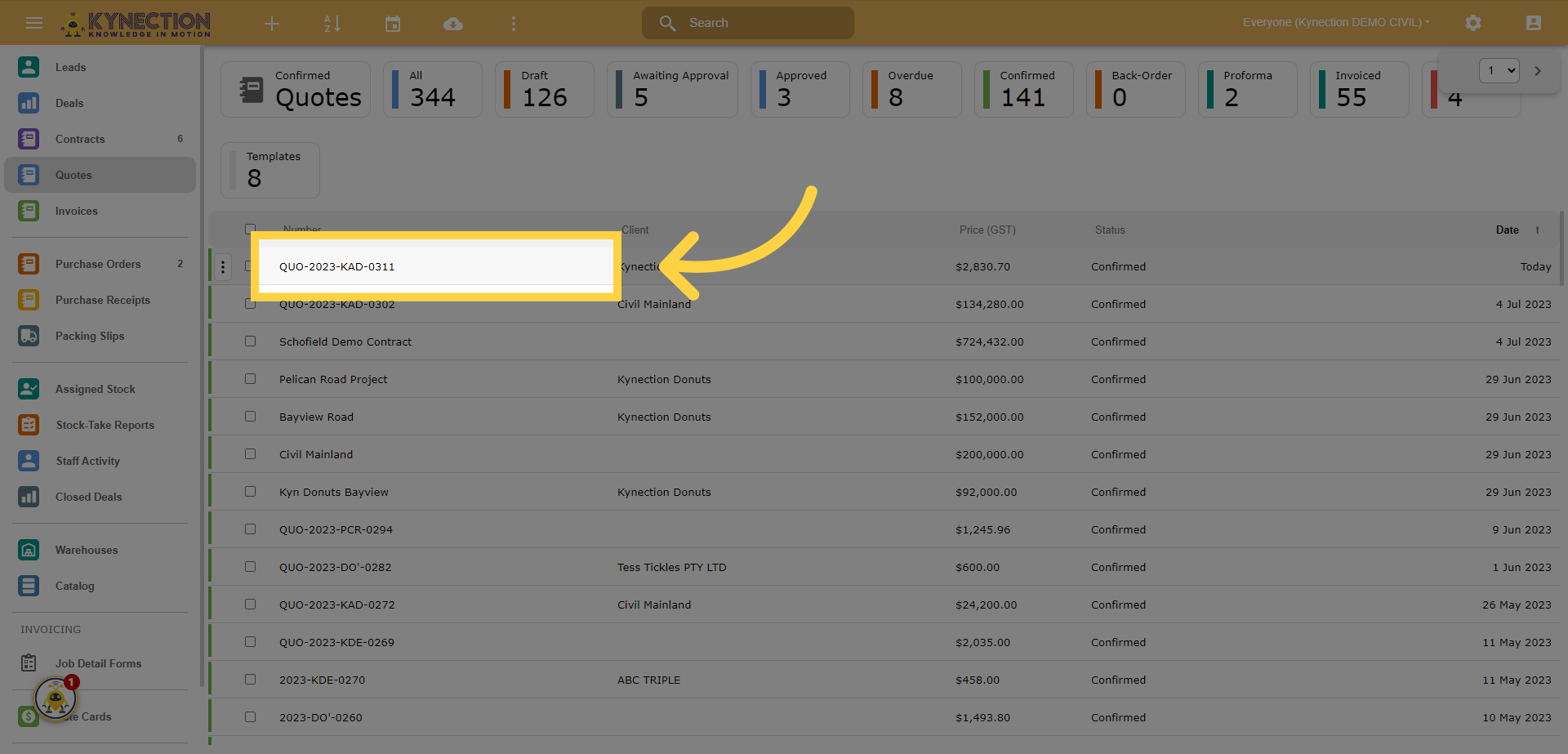
3. In the opened quote, click the + button
Click here.
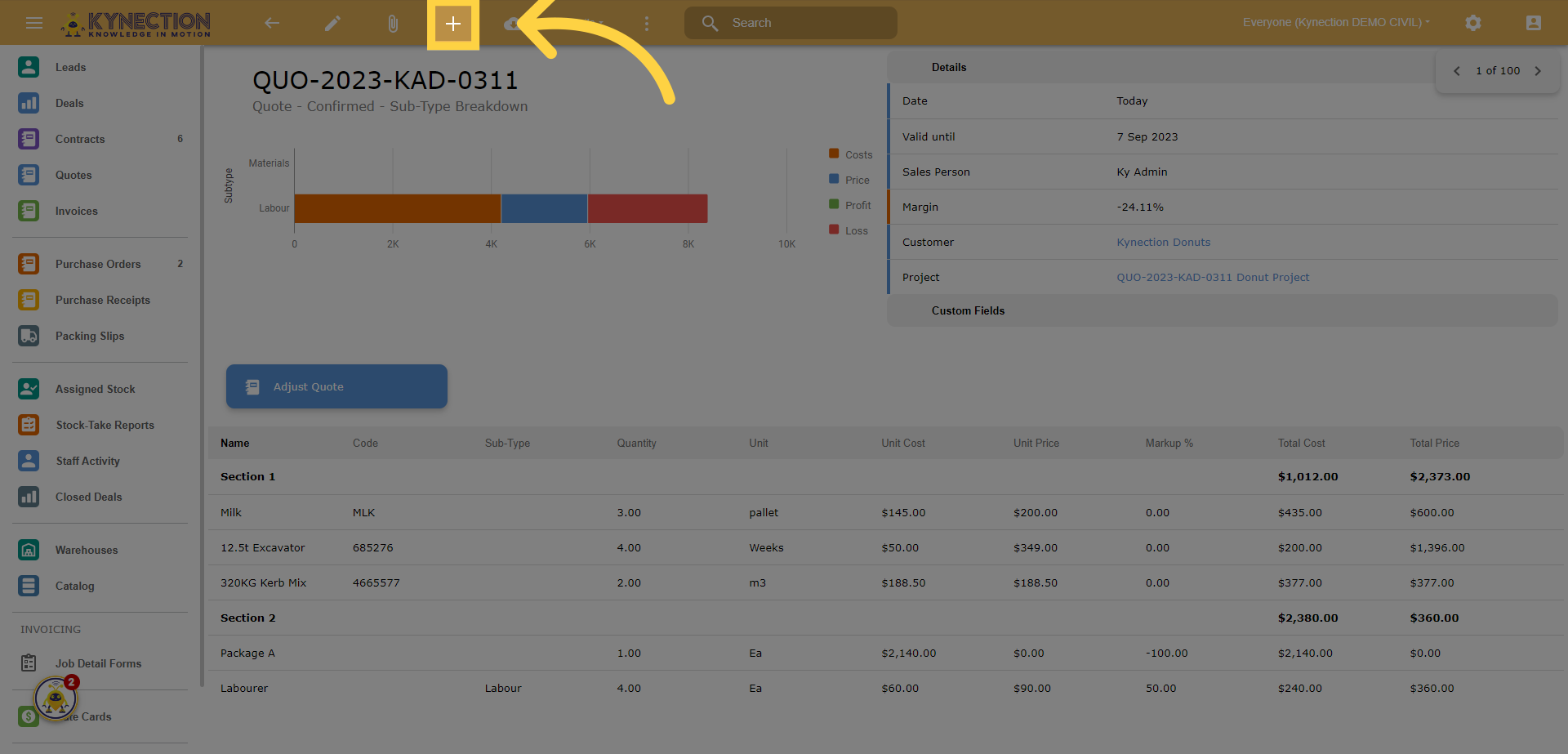
4. Click "Raise Invoice"
Click on the "Raise Invoice" button.
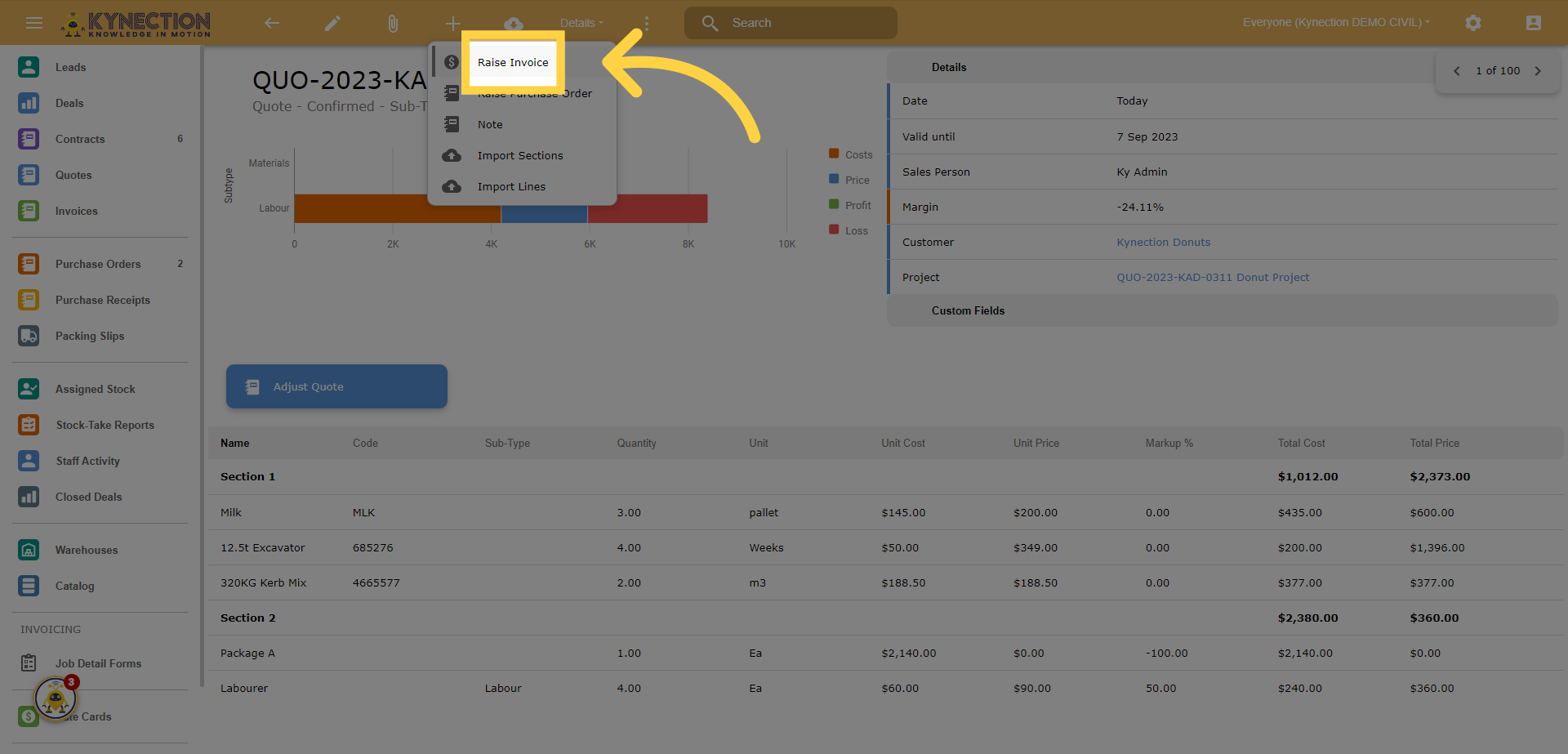
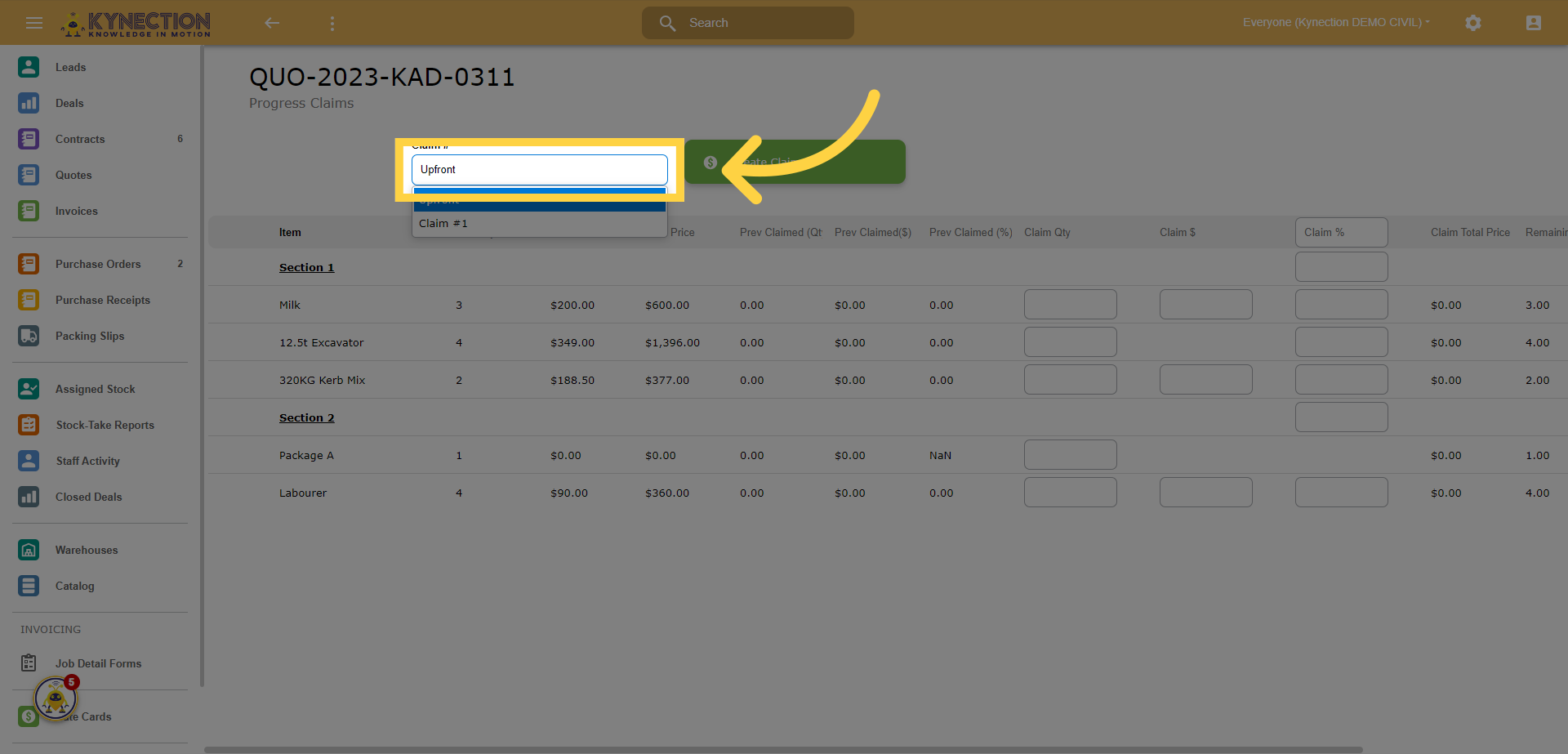
5. First raise an "Upfront" Claim
Click on the "Upfront" button.
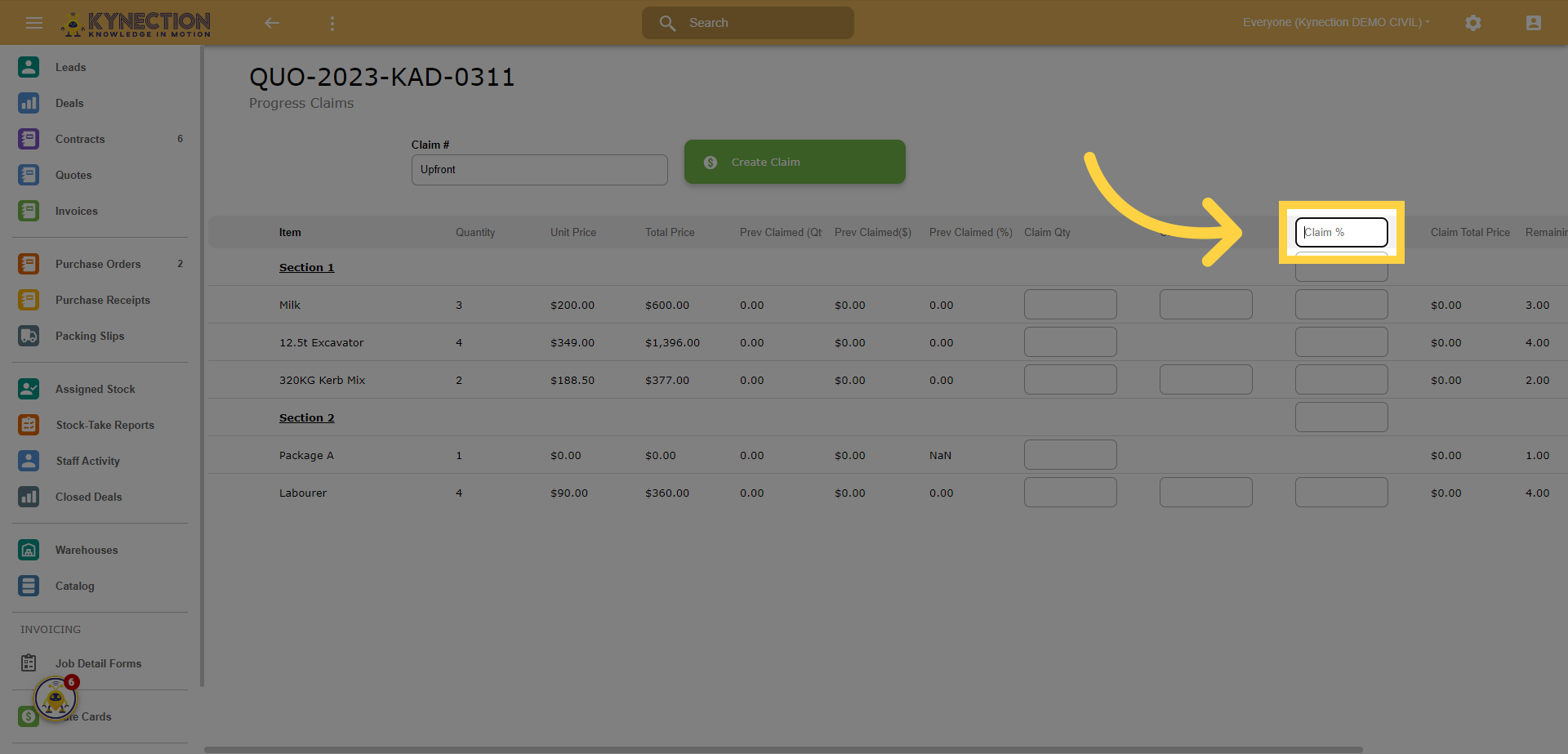
6. Enter the percent you want to claim in the Claim Box
You can claim based on percentage, dollar amount or by the quantity of items used
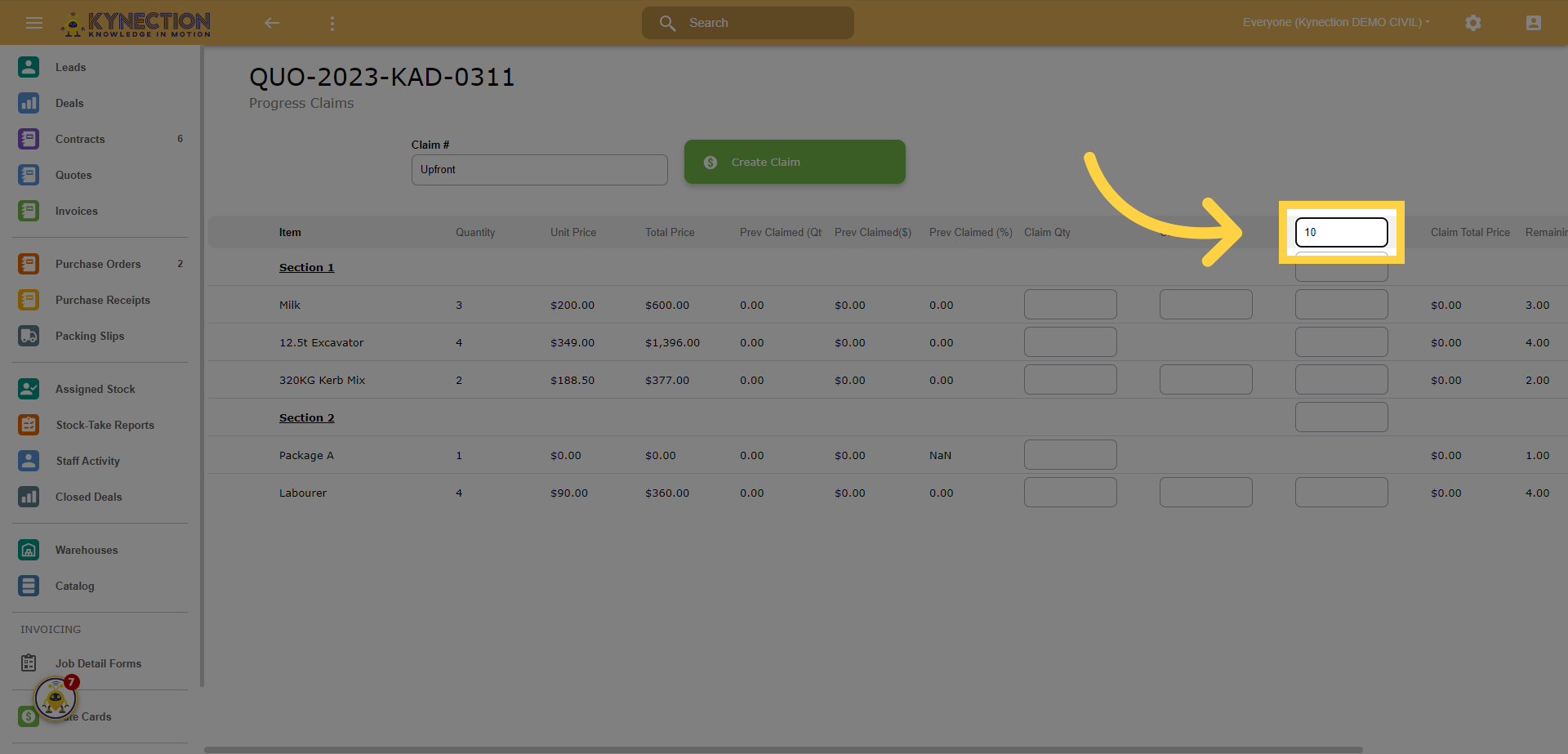
7. Fill the percentage you wish to claim
This will apply the percentage to all lower line items.
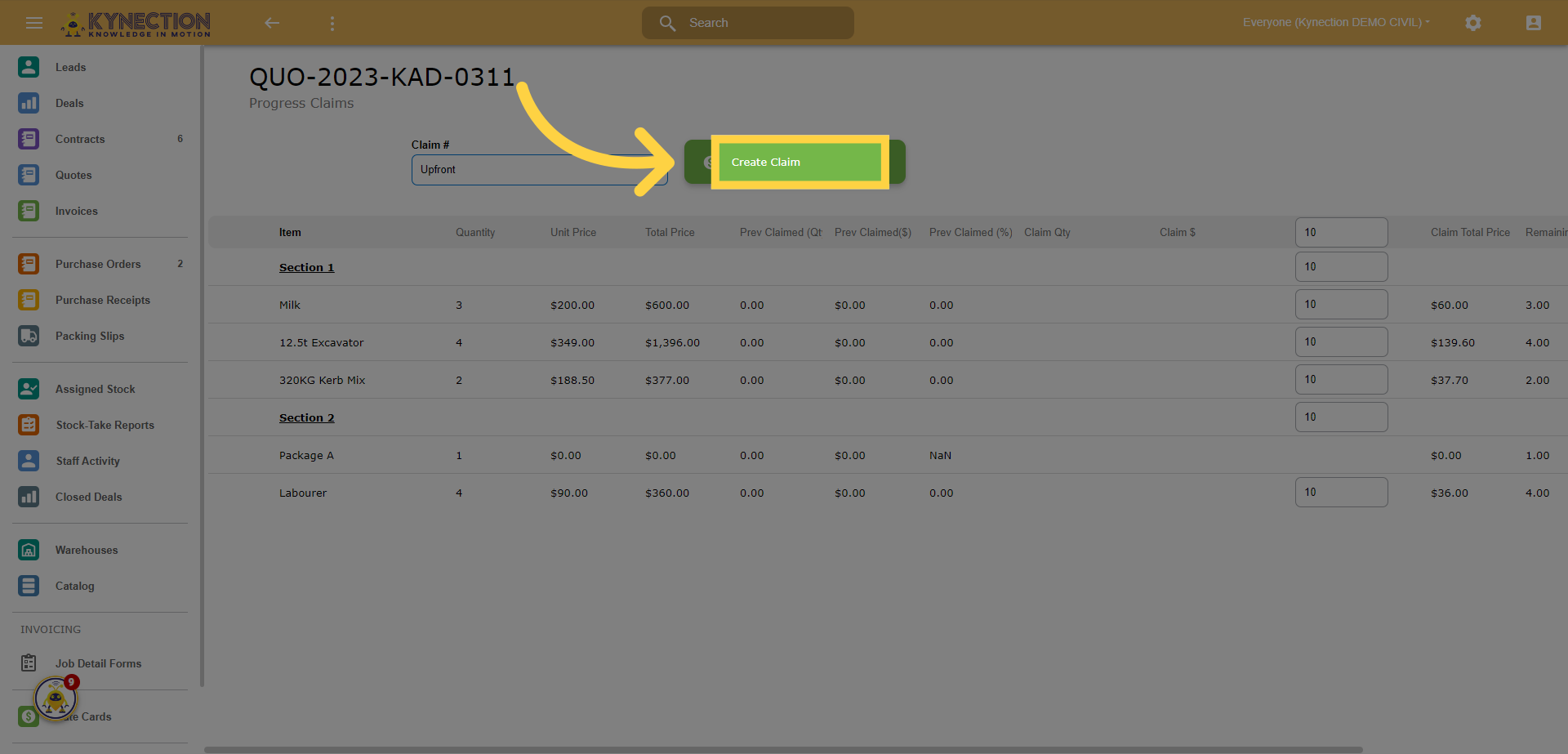
8. Click "Create Claim"
Click on the "Create Claim" button.
9. The upfront claim invoice is created
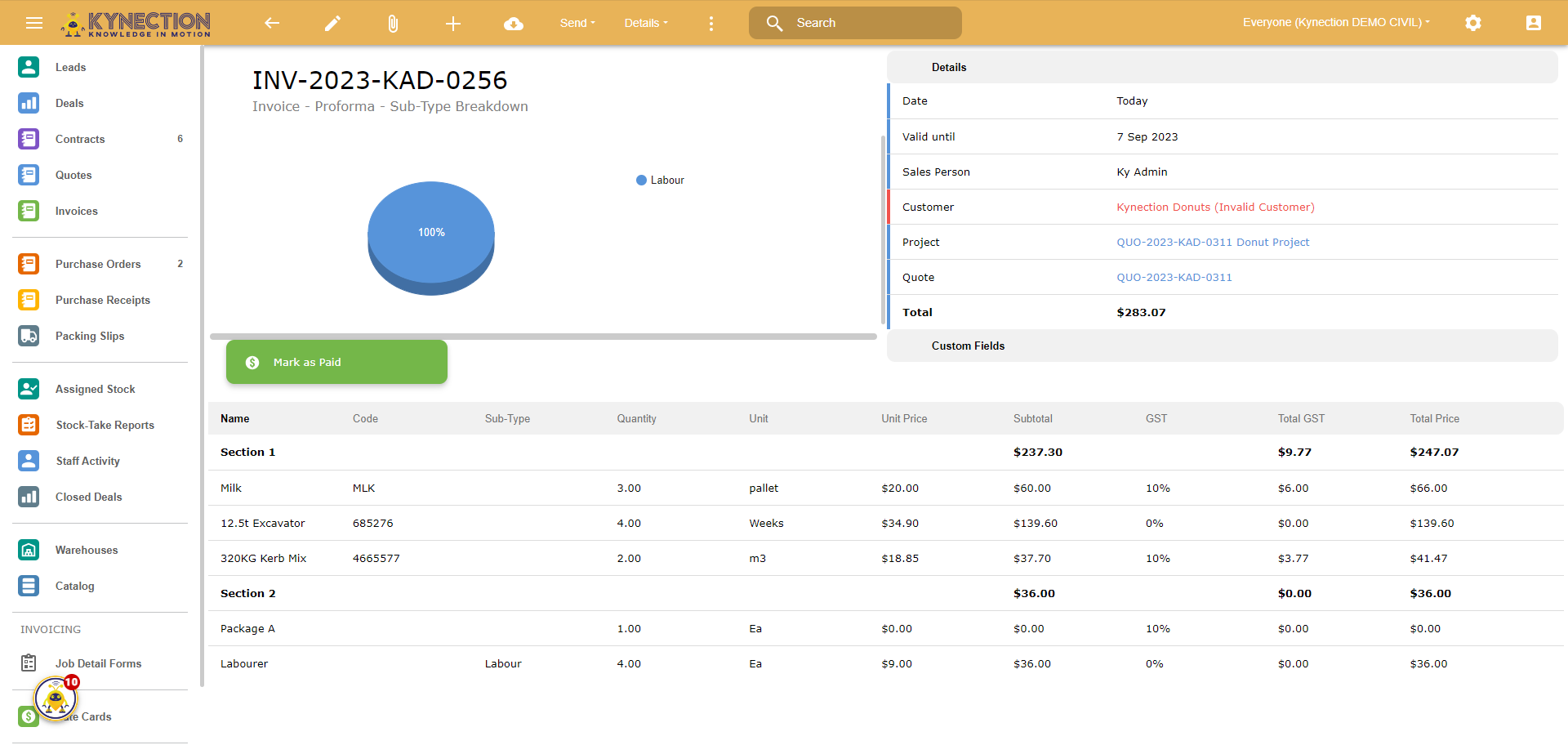
10. Click back to go back to the quote
Click here.
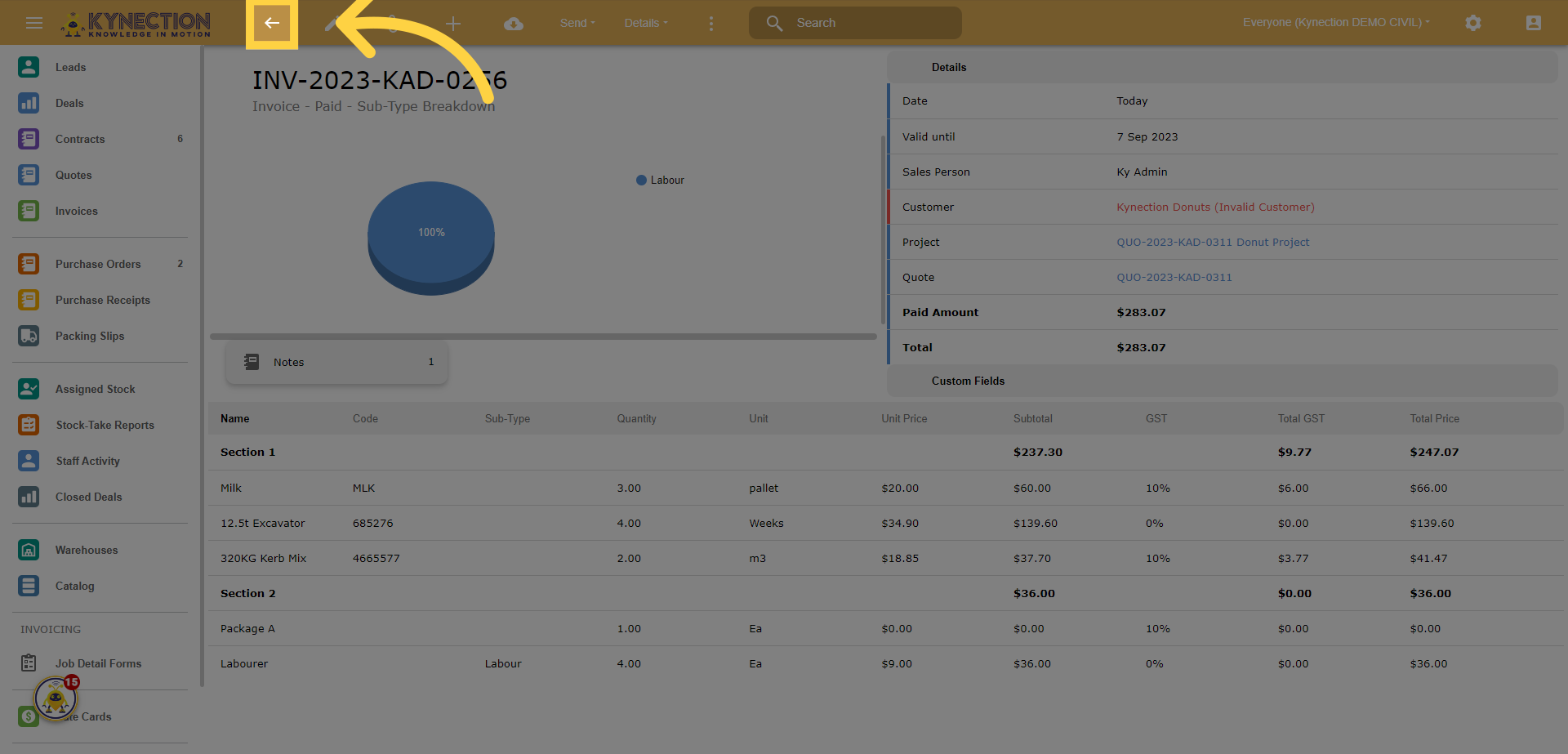
11. Back on the quote you can view all invoices linked to the quote under "Details"
Click on the "Details" button.
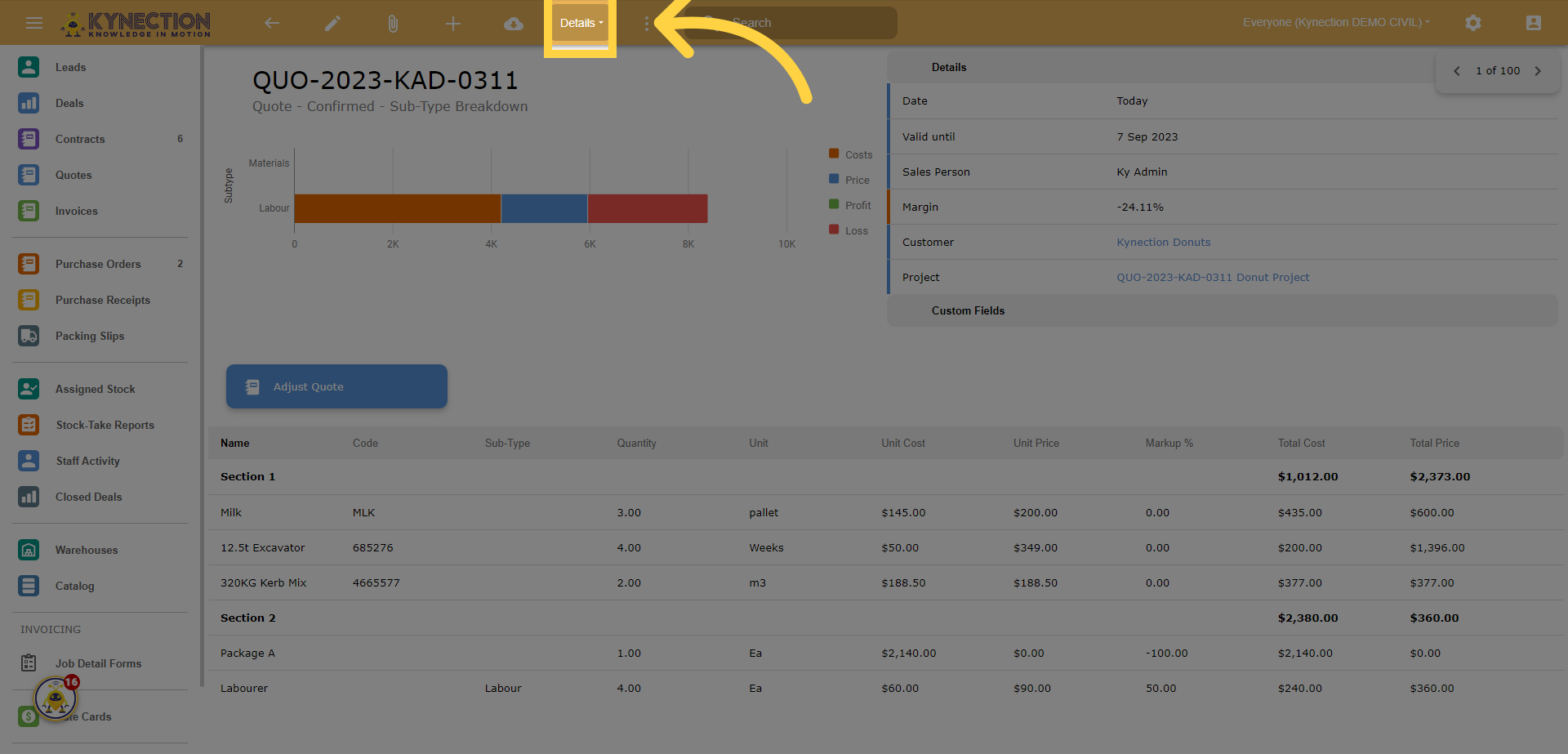
12. Click "View Invoices"
Click on the "View Invoices" button.
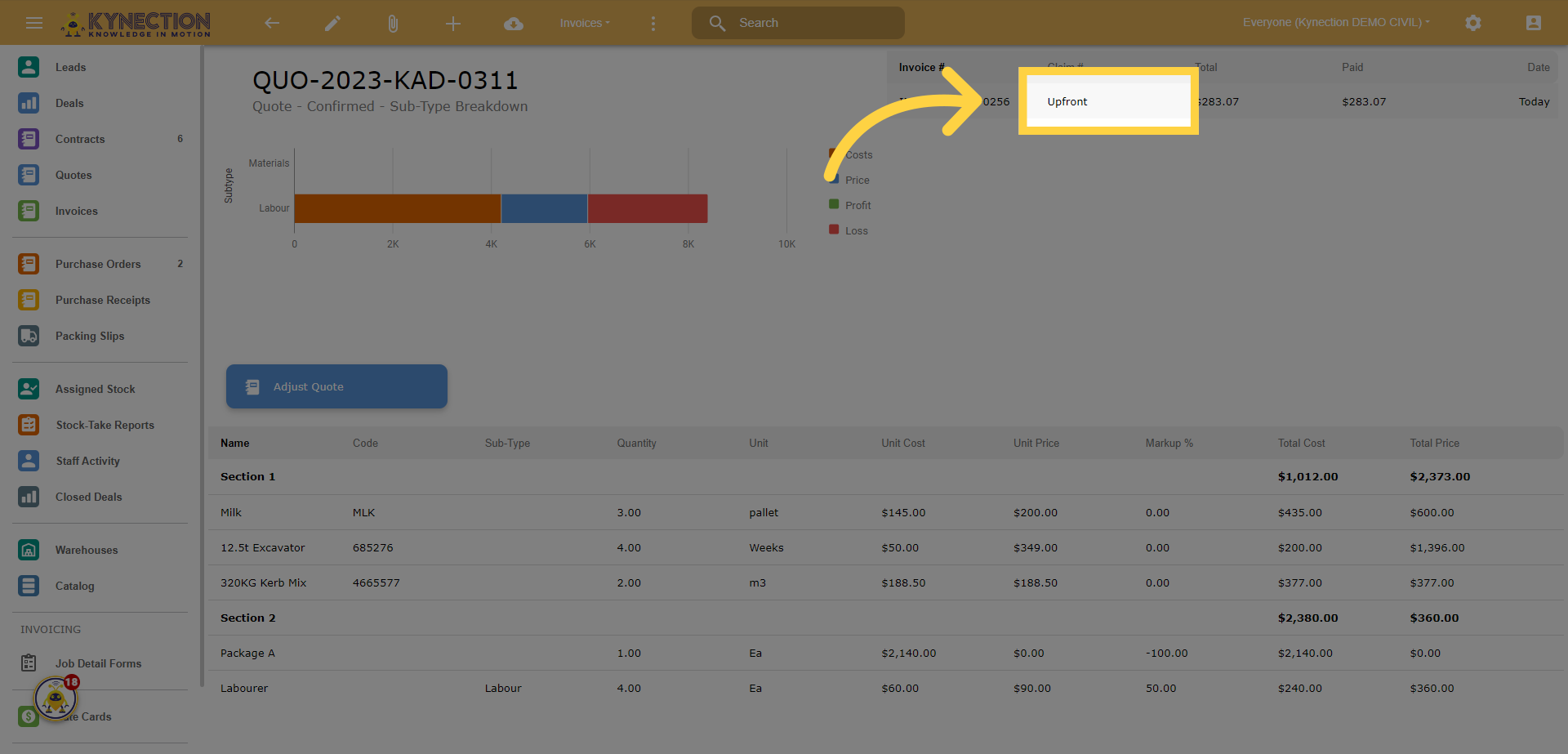
13. Click an invoice from the list
Click on the "Upfront" button.
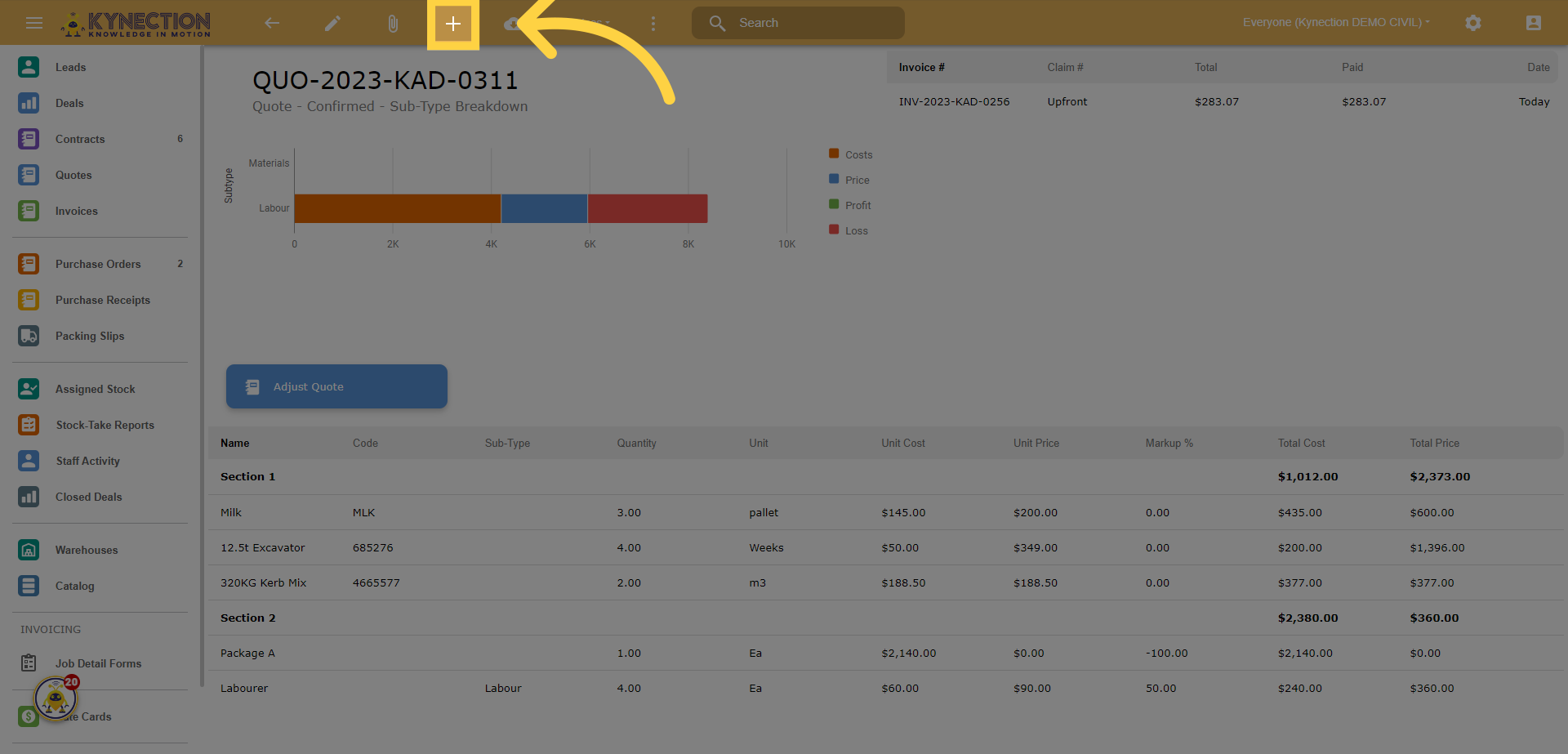
14. Now Raise a second invoice by clicking the + button
Click here.
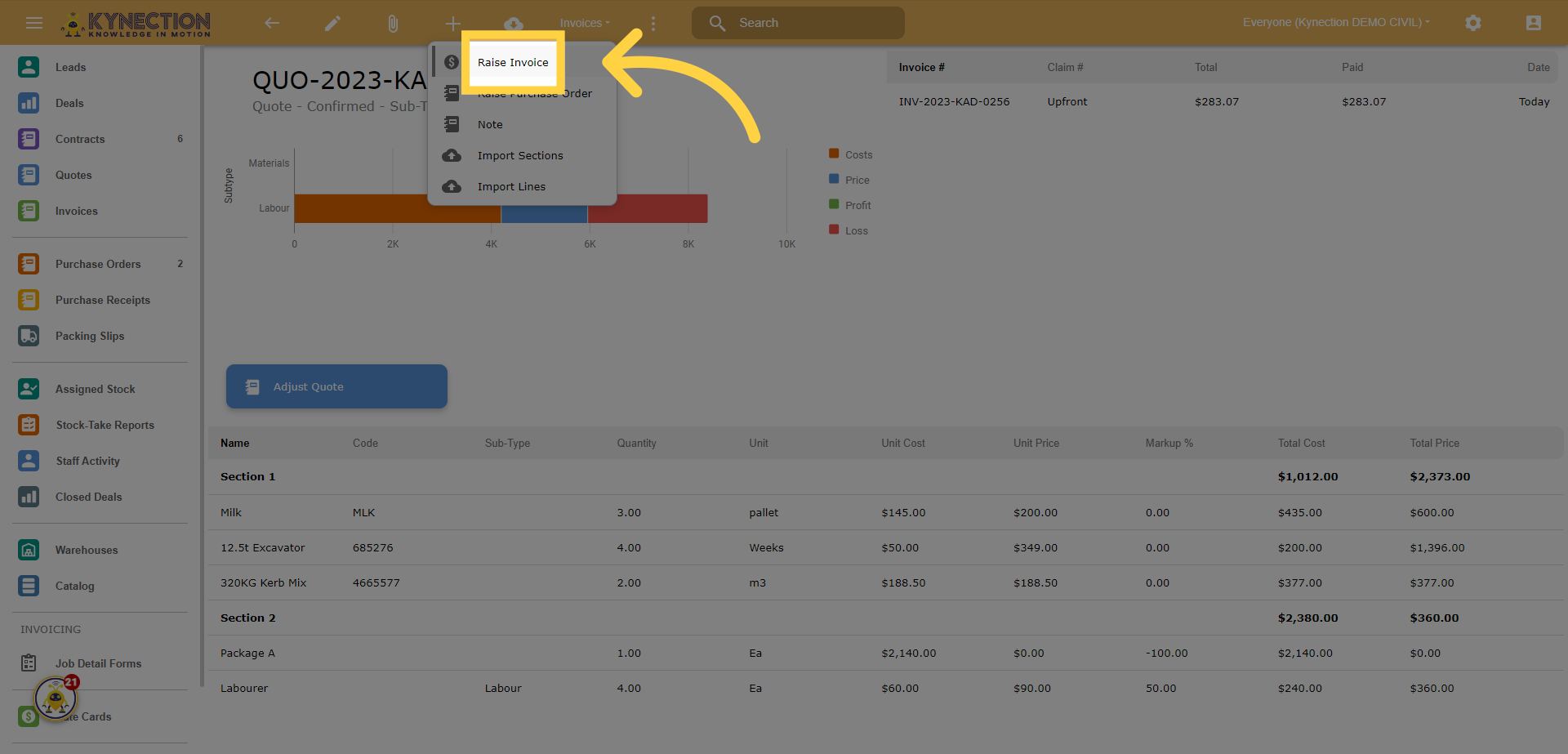
15. Click "Raise Invoice"
Click on the "Raise Invoice" button.
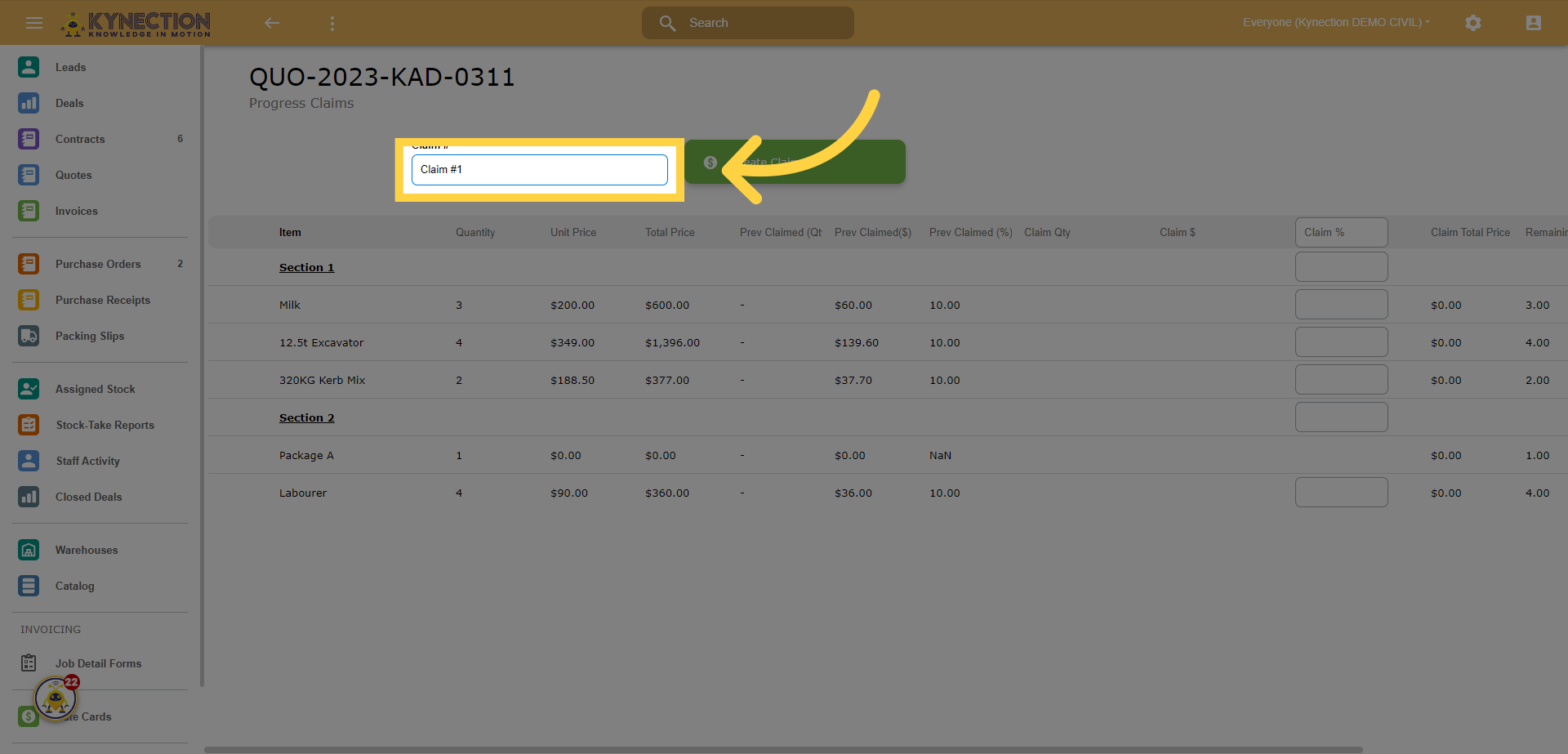
16. Click "Claim #1"
Click on the "Claim #1" button.
17. Set your claim amount
Click on the "Claim %" button.
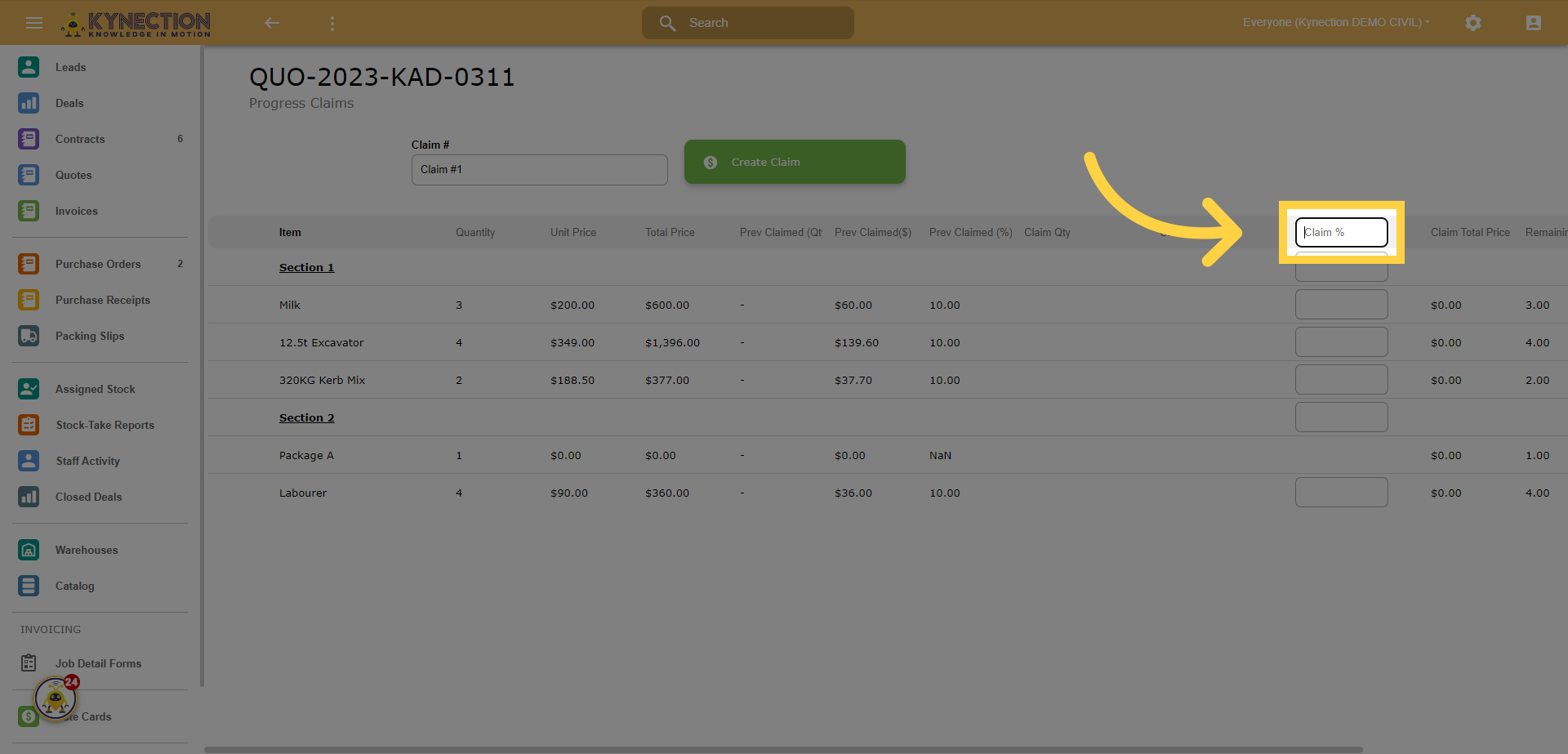
18. Fill the remaining percentage left to claim
Fill in the field with the value "90".
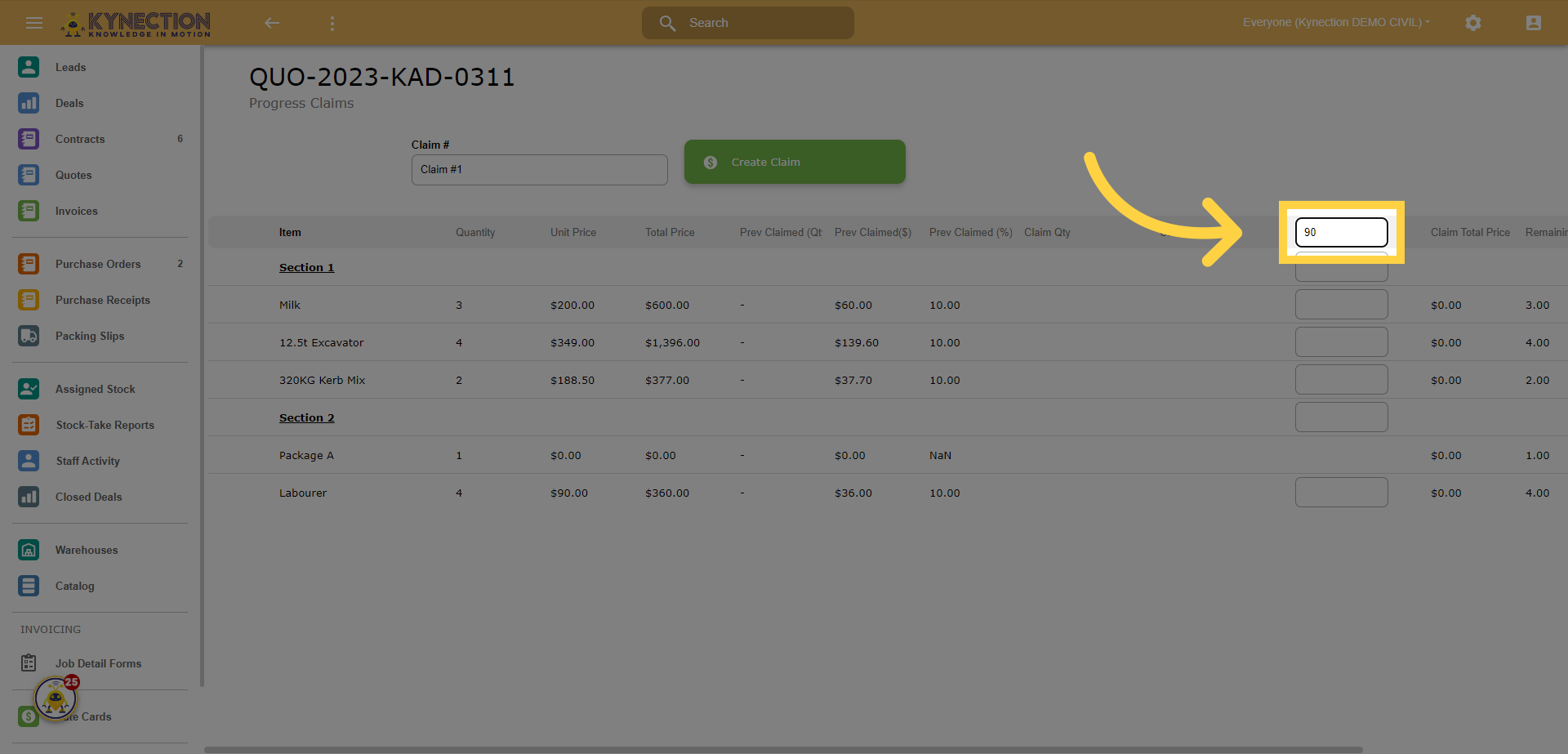
19. Click "Create Claim" and create your final claim
Click on the "Create Claim" button.